Hey Readers & Members, I just had the most pleasant surprise during my work day. A new Siri AI feature genuinely made my work, faster and easier to the point that I thought, wow, I must share this with you! So, let me tell you about it.
First off, Mike and I have been running the Public Beta of iPadOS 27 since it launched, and I must say it has been surprisingly stable, particularly this most recent update.
The first Public Beta had some rough edges, like my trackpad not working when it came to swiping apps away in the App Exposé, or the traffic light icons not being clickable, only by touch. Those thankfully have been fixed now in the latest Beta update, and Apart from that it’s been very smooth, (touch wood).
A Bit Of Context
Back to my story, I had to set up a meeting with some of our team members, about streamlining some of the “boards” we use across our companies ERP system, (Enterprise Resource Planing). We use software called Monday.com. From time to time, I like to have what I call “Process Improvement” meetings, to make sure our digital systems are staying in step with how we physically work, for example in our warehouse or in our office when performing manual tasks. The goal of doing this is to ultimately make sure we remove friction and improve on our processes.

So I patch everyone into this meeting via FaceTime. Which let me just say, even if your team isn’t all on Apple devices, works surprisingly well. You can even share a web browser FaceTime link with that person and they simply join the meeting via the link.
We use FaceTime for all our internal meetings, it’s hands down the most frictionless video meeting app on the App Store, mostly because it is baked into Apple’s native apps of course. Mike actually wrote a nice article about the features we like most about FaceTime, you can check it out here.
The Meeting
In the meeting I realized I didn’t have my iPad mini, which I rely on to take any hand written notes, a rookie mistake I know, but I wasn’t about to admit that to the team, and I also wasn’t about to disrupt the meeting to go and fetch the the device. Then I remembered the “Quick Note” shortcut! Regular readers of our blog and listeners of our Podcast, will know how this “Quick Note” shortcut has saved me countless times!
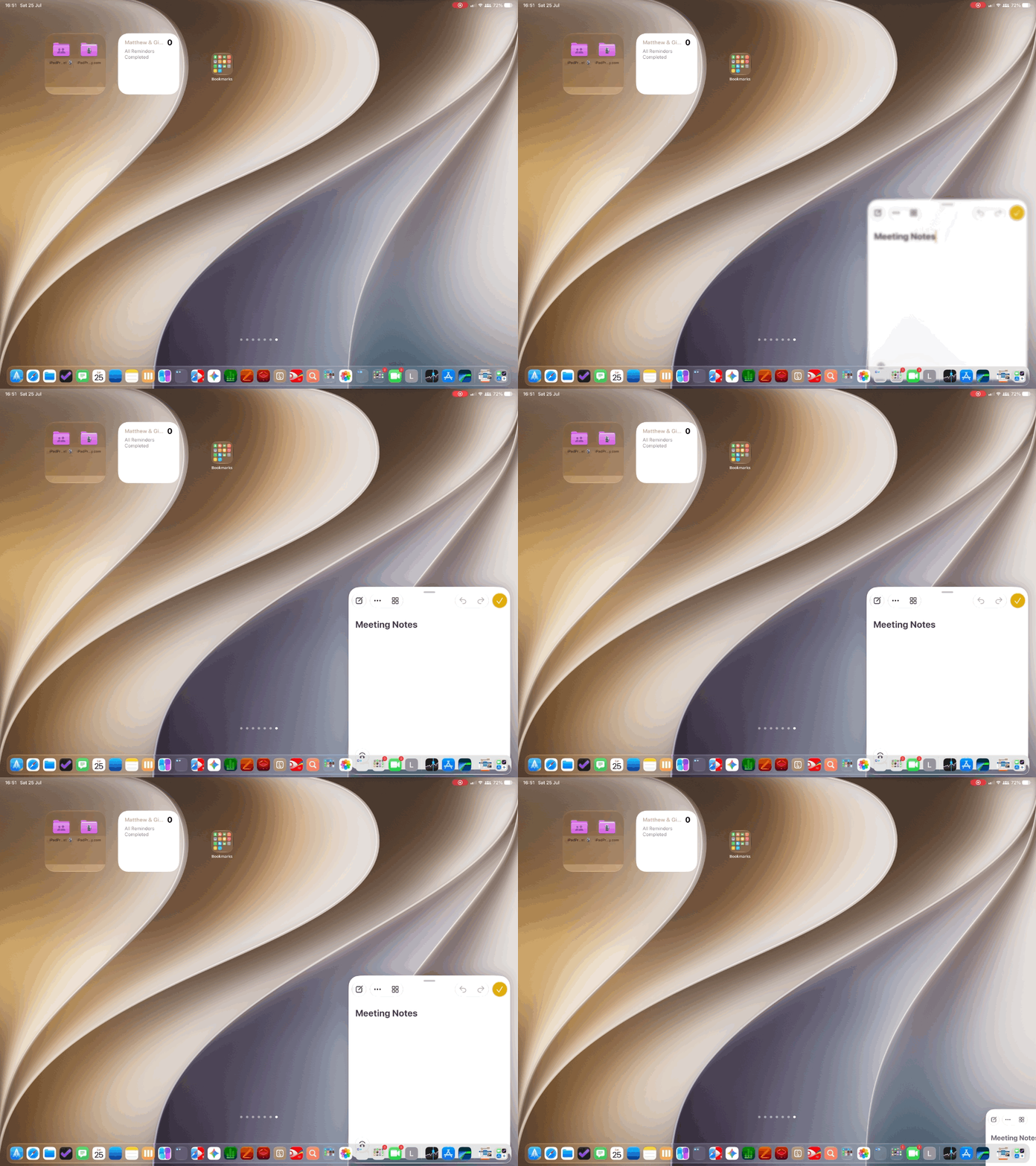
Simply press “🌐+Q” which instantly shows a “Post-it” sized note in the bottom right hand side of your screen, which you can type in, or write in with your Apple Pencil, see below. If you would like to explore more features about the notes App that we particularly like, here is an article Mike wrote that you might find useful.
Now because I had “Resume last Quick Note” toggled off in settings, it meant that during the meeting whenever I needed another quick note, pressing “🌐+Q” would bring up a brand new note, and not my last note from the meeting . This meant that by the end of the meeting I had several quick notes that I needed to reference, in order to summarize the meeting into action points. Hence I recommend turning that feature “on” in settings, to do this simply search for the Notes App and switch it on, as below.

My logic is that by doing this, if I ever need a new quick note I can simply tap the “New Note” icon in the “Quick Note” window, because it is right there as shown below.