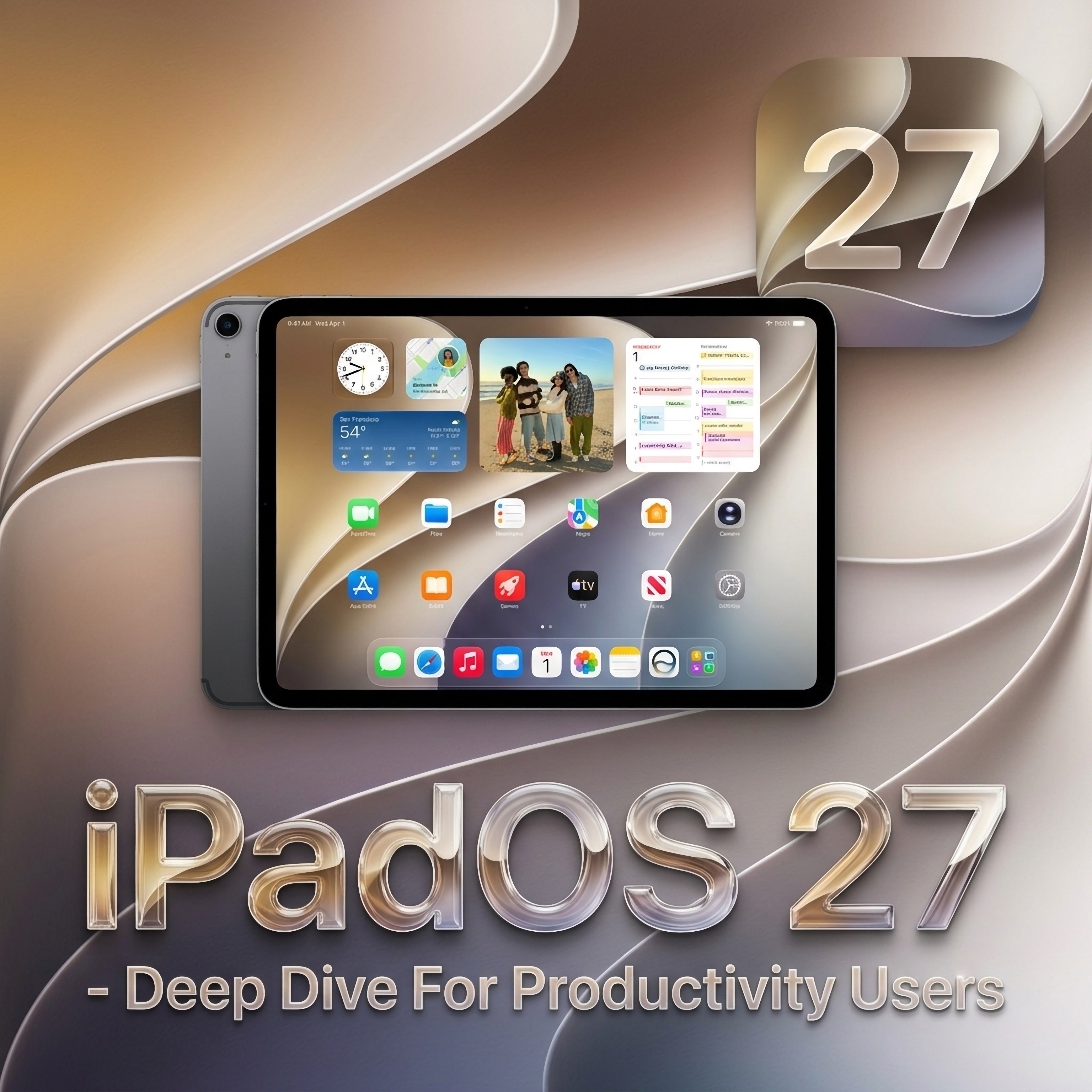
The keynote for WWDC 26 has come to a close and WOW, what an exciting event it was! This week I have been carefully sifting through what all of these announcements actually mean for iPad productivity users. Here is our in-depth dive just for you, our Members and fellow iPad enthusiast’s. Buckle up, there’s allot of improvements and new features to unpack, so let’s dive right in!
A Powerful Speed Boost
Apple have pushed hard this year into “Responsiveness”. Stacy Ford, the VP of OS Program Management came out on stage to explain, that they have achieved this by focusing on the fundamentals, like memory usage, CPU utilization, display rendering and more.
Responsiveness was an area that iPad power users felt Apple could improve on in iPadOS 26, and it looks like they have delivered.
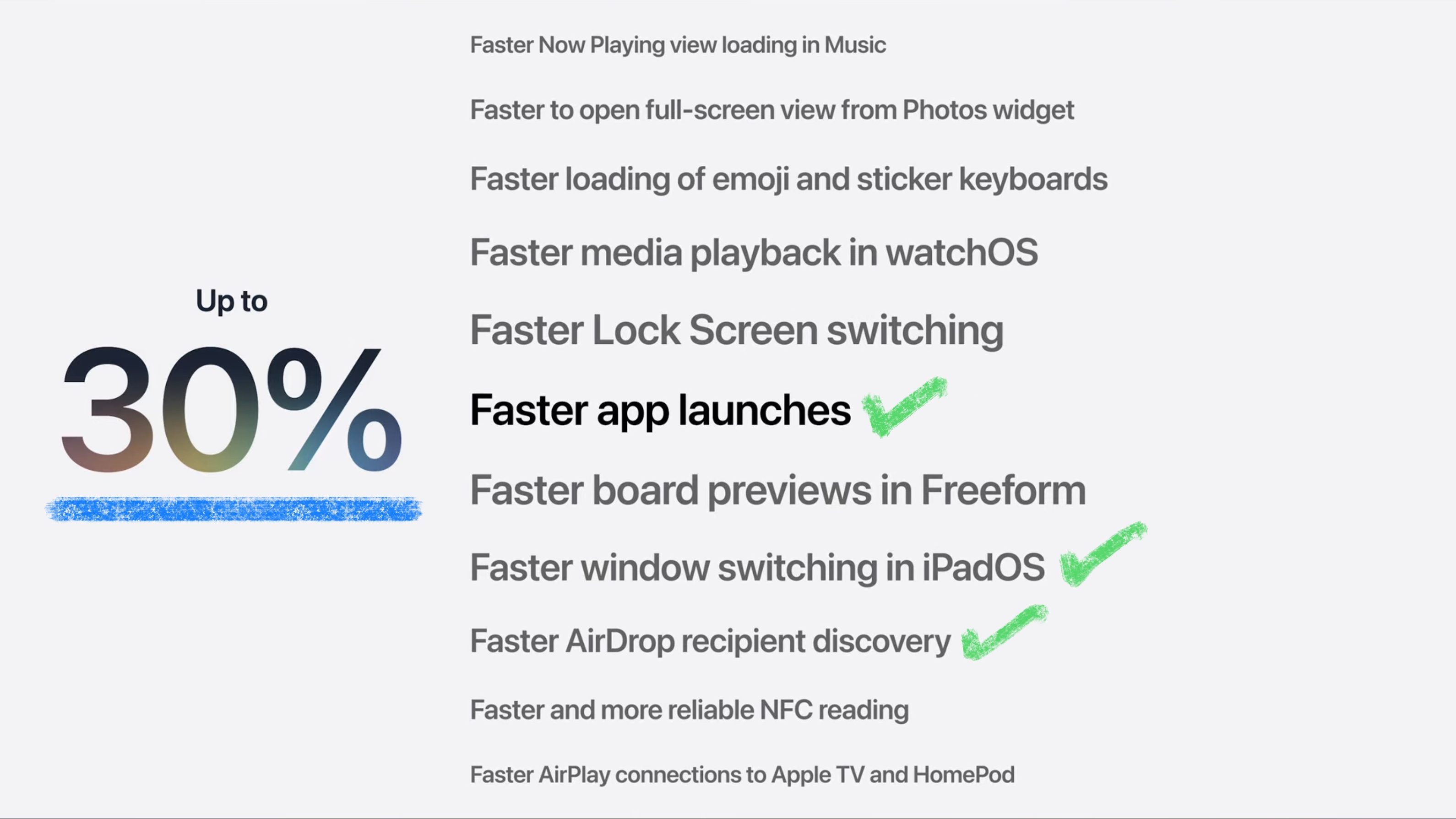
In iPadOS 27 Apps now launch 30% faster, including 3rd party Apps and content across the system loads significantly faster. This is a welcome speed boost for power users and those on older devices.
For those who rely on Air Drop to transfer large files between devices, for example a Videographer shooting on their iPhone and wanting to edit in LumaFusion on their iPad, Air Drop is now a whopping 80% faster!

Stacy Ford went on to say that File browsing on iPadOS is now as fast as Finder on MacOS!
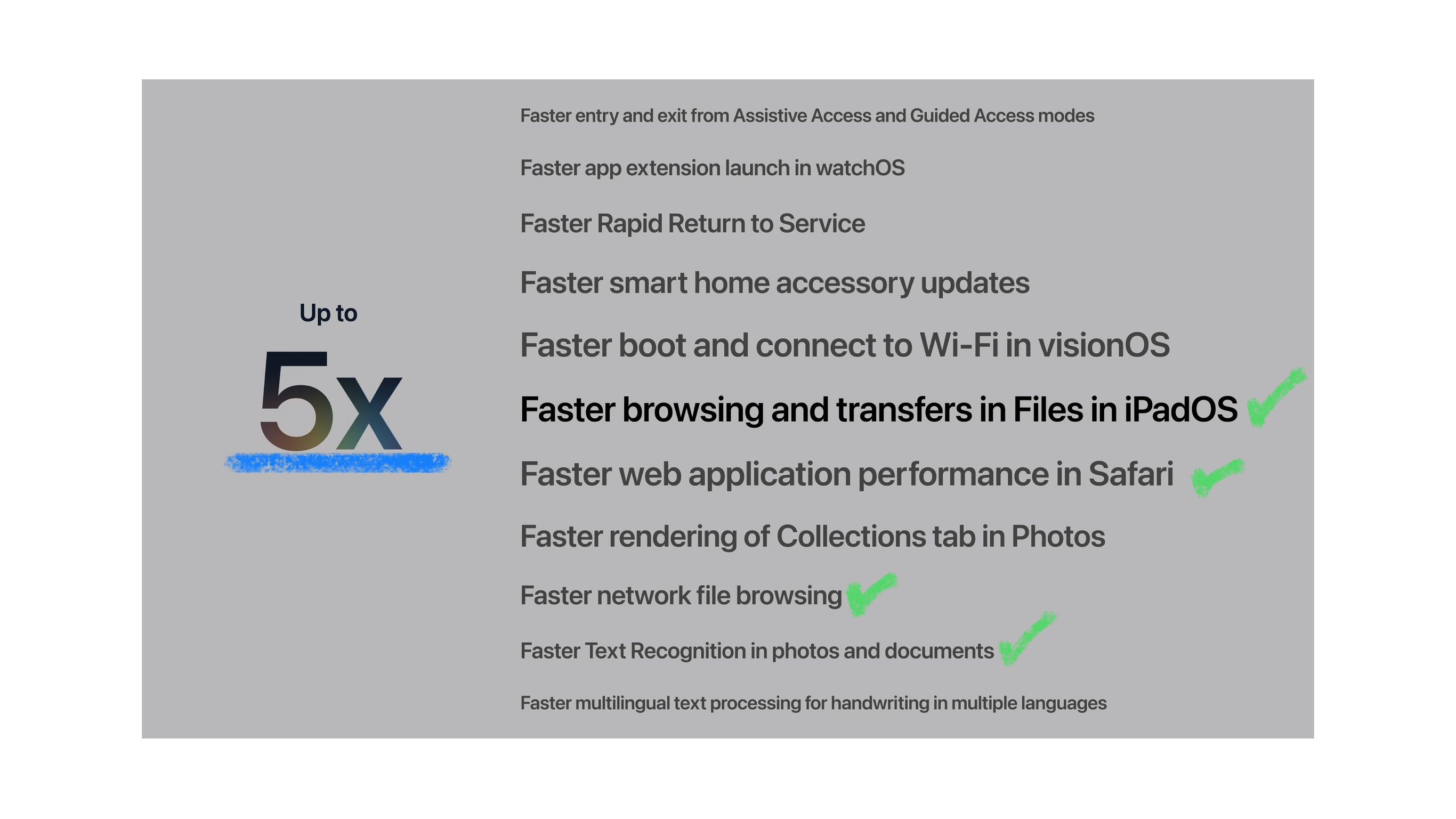
The Files App also receives intelligent name suggestions for files and folders.
Spotlight Search
Apple have now re-built the foundation of Search that powers Spotlight on iPadOS, something I am EXTREMELY excited to see. I can’t tell you how many times Spotlight doesn’t index information I know is in the system.
In iPadOS 27 when you update to the new software, the system will start indexing all your information, to get a picture of what is already there, this will take a few minutes depending on the amount of data, chip and device you have. When new information is added to your device or received, it is now indexed almost immediately, be it files, folders, images, etc, so that when you search it’s recalled instantly.
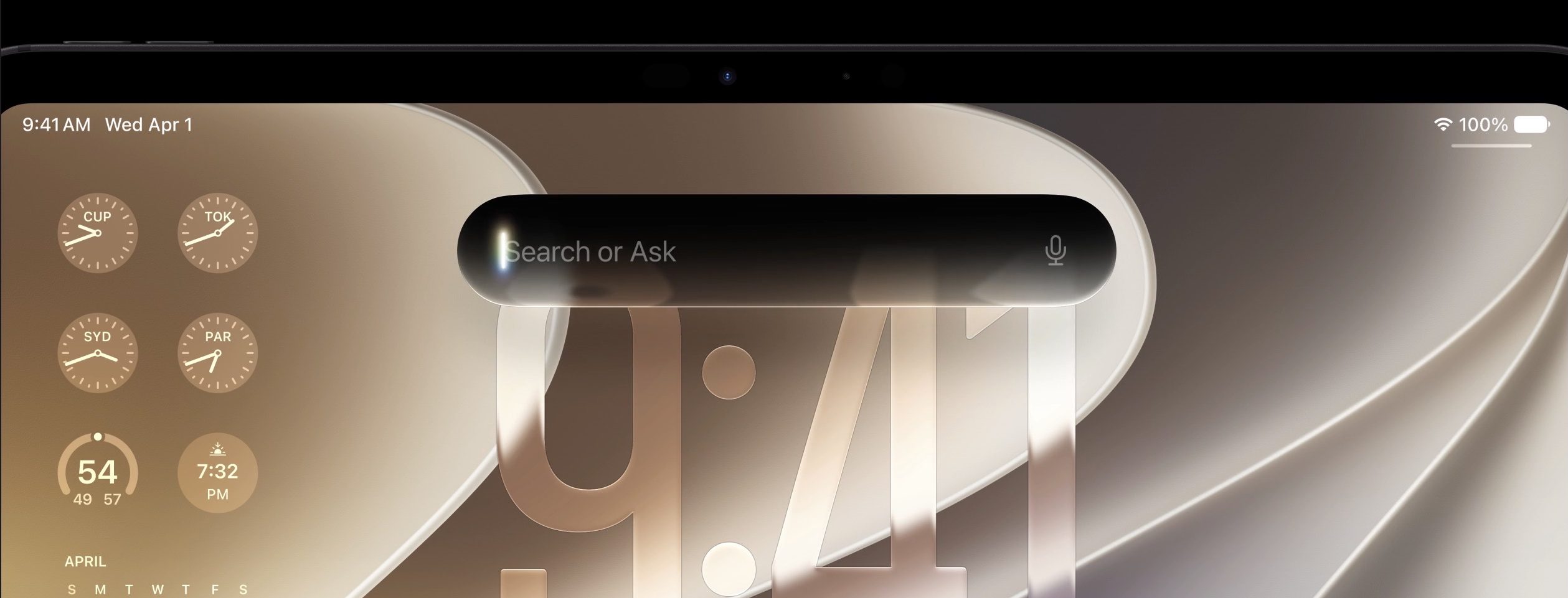
Spotlight Search is now built on entirely new architecture, with Accuracy and Speed being at the core. Indexing is now instant and because Spotlight search on iPadOS 27 acts as a Siri command center, you can search using natural language in dictation or text right from Spotlight. For example, instead of typing in the PDF name you are searching for, you can type “find the PDF Jim sent me yesterday”.
Best of all is that this AI type of assistance, is all on device, using just your iPads hardware so your personal data, emails, messages, photo’s emails, etc are never sent to the cloud.
Apple Intelligence UNLEASHED!
It’s no surprise that WWDC 26 was going to be centered around AI, and boy was it! Apple announced Siri AI as the AI Assistant you interface with.
I am excited to report that Siri AI is going to be a huge win for productivity users. Apple has achieved this by making Siri accessible wherever you are in the system, through intuitive, speedy actions built to aid productivity workflows, not imped them. Let me explain how it works and why it is so impressive!
Apple Intelligence (Siri AI) works with 5 different Apple foundation Models (AFM’s). Let me break them down quickly;

As you can see above, the glaringly obvious condition to run Apple’s most powerful on device AI features, require a minimum of 12g to run.
This means only M4 Chips with 12g of ram or higher, will be able to run these new features which use Apples new AFM Core Advanced model.
The good news is that excluding the “most powerful features” as Apple puts it, for older devices you will be able to run all AI features supported by through Apple’s AFM Core model.
On a side note, I will say it is seriously impressive that Apple have managed to run a 20B parameter model on just 12g of Ram!
They have managed to do this by using “sparse architecture” which rather than keeping all 20 Billion parameters active at once, (which understandably would drain your battery and eat up all your memory), the AI activates just a quarter of the 20 Billion parameter budget. Using just 1 to 4 billion at any given time, depending of course on what the specific prompt/ task requires.
So in practicality terms, what can all of this actually do for iPad users?
Image Editing Advancements
Photo’s has now recieved some impressive AI updates. One such feature is called “Reframe”. Using spacial depth, “Reframe” found in the Photo editing tools, allows you to re-position the camera angle, then using Siri AI fills in the perspective gaps and creates the illusion that the photo what taken from your newly chosen angle. See the video above to see what I mean.
Another new feature to the Photo’s app, is the ability to “Expand” the image should you wish in to enlarge your photo for say a landscape shot. I have often in the past thought, “ah I wish I had this photo in landscape, to use in a video or website use case”. I must say, from what I have seen this works extremely well.

You will see in the photo above from the tools in the right hand side, another new feature called “Clean up”, this feature now enables you to remove much larger objects from your photo’s than previously allowed.
Visual Intelligence Is Here
Visual Intelligence was a feature we were very excited about two years ago, when apple first talked about it, well it’s now here and it’s as impressive as they first described it. This Uses the iPad’s Screenshot tool, to allow you to ask for information about what is on screen. This will be great for; assessing spreadsheets, interpreting graphs, extracting information, sourcing materials found on the web, translating foreign or competitor product labels, the list is endless.
In more casual use cases, Visual Intelligence can be used to identify places, clothing brands, shopping options, food, signs, language translation and much more.

On-Screen Awareness
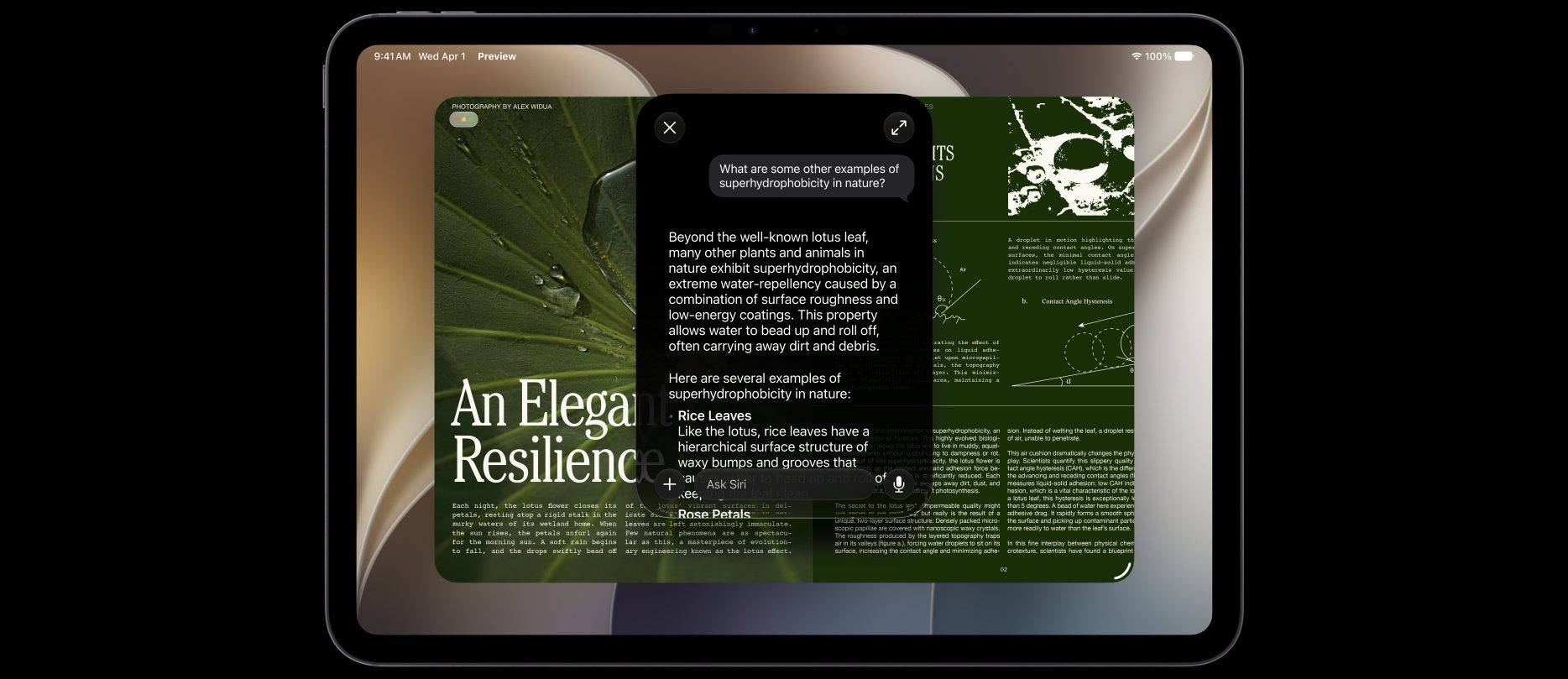
This has to be one of my favorite new features. With On-Screen Awareness, Siri understands the relationship between your Apps on-screen and can bridge your custom commands between them, to connect system actions to app actions.
In practical terms this means you can receive an email about a supplier price increase and ask Siri to take the information and start a letter in Pages explaining how you need to pass on this supplier increase to your customers.
Another productivity example of this would be, (in theory), if I am reading the datasheet of a competitor product and I want to know how the features stack up against one of our products, I can just ask Siri to compare this to a datasheet name located in my files app – I can’t wait to try use cases like this!
Personal Context Understanding
Siri can now securely sort through your emails, messages, calendar, photo’s etc, to answer contextual questions like, “what time is the board meeting that we all agreed to in the email from Steve from yesterday?”. Or “what time does my flight leave for my work trip in August?”.
Conversational Logic

Another less spoken about improvement is “Conversational Logic”. Siri will no longer trip up if you repeat yourself, stumble over words or ask for multiple things in a single request.
Siri can now handle back to back requests, like setting multiple Alarms. For example asking to set an alarm for; your flight check-in time, walking up in the morning to leave for the airport and reminding me to packing last minute items at another time, can all be asked in a single request.
This is actually my number one grip with HomeKit! Currently I can’t ask Siri to do multiple things in my home, and if I get one of those specific scene names wrong, Siri chokes. I can wait for this to come out.
Image Playgrounds
Staying on the image AI front, Image Playgrounds received a very welcome update. Now you can generate photo realistic images from the app which means you can create; graphics for; presentations, adverts, web, social media etc, making Image Playgrounds much more useful from a productivity stand point.
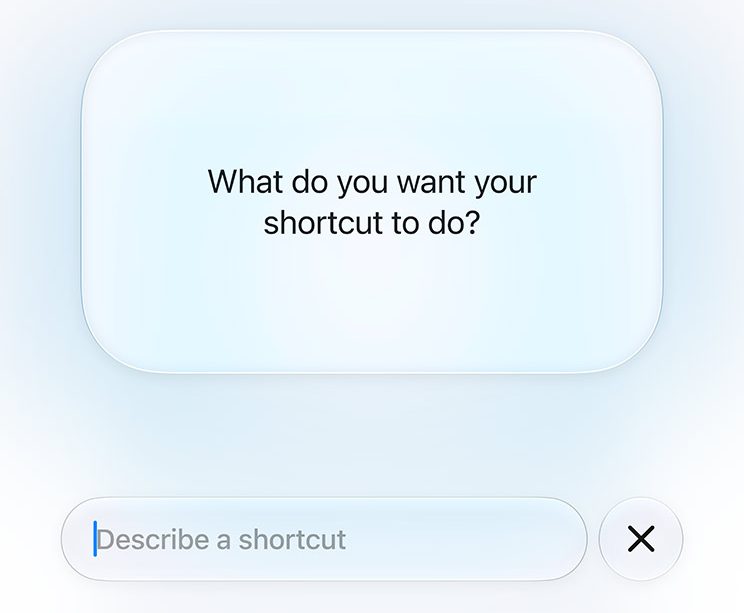
Shortcut Creation