

FaceTime has always been a great tool to connect with people, be it friends, family, colleagues and the like. With iPadOS 26 there are some great new features as well as improvements too.
Menu items & filtering
There is a new menu item added to FaceTime in the form of 3 progressional lines. Within this menu you have the option to filter how you view your calls. The options are; Calls, Missed, Video, Voicemail, Unknown Callers and Spam.
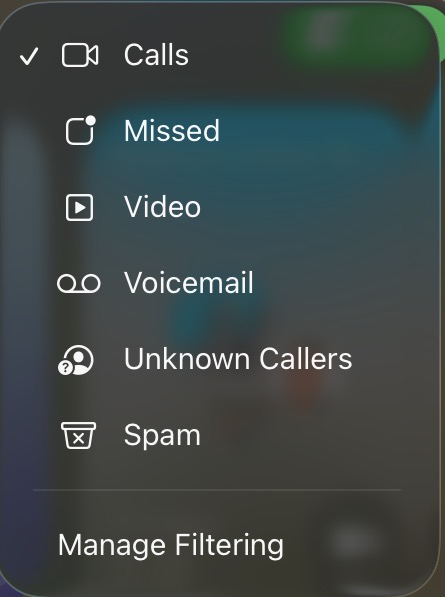
You do have the option to ”manage filtering” however this is limited to two options being “Unknown Callers” where both incoming calls and voicemails from unknown numbers will be moved to a new list called “Unknown Callers”. The 2nd option is “FaceTime Spam” which will automatically detect calls which appear to be spam or fraud and moved to “Spam List”, both these notifications are silenced.
FaceTime Controls
To access FaceTime Controls you will need to open control centre by either touching/clicking the top right corner where the status icons are (battery, connectivity etc…) or you can use the keyboard shortcut “globe key 🌐 + c” or “fn key + c”. Once the control centre opens there should be a highlighted green bar thats says “FaceTime Controls”. Touch/click this option.
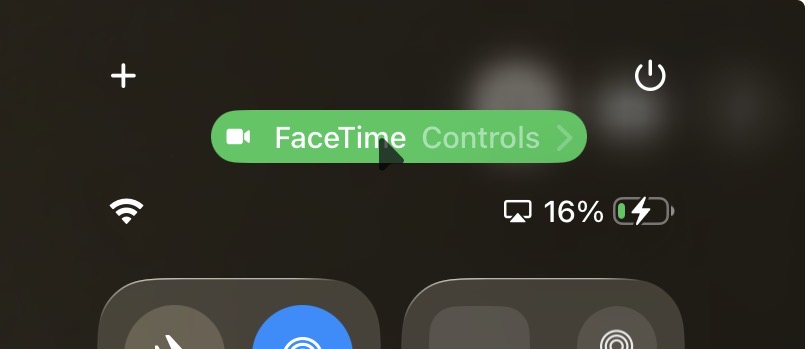
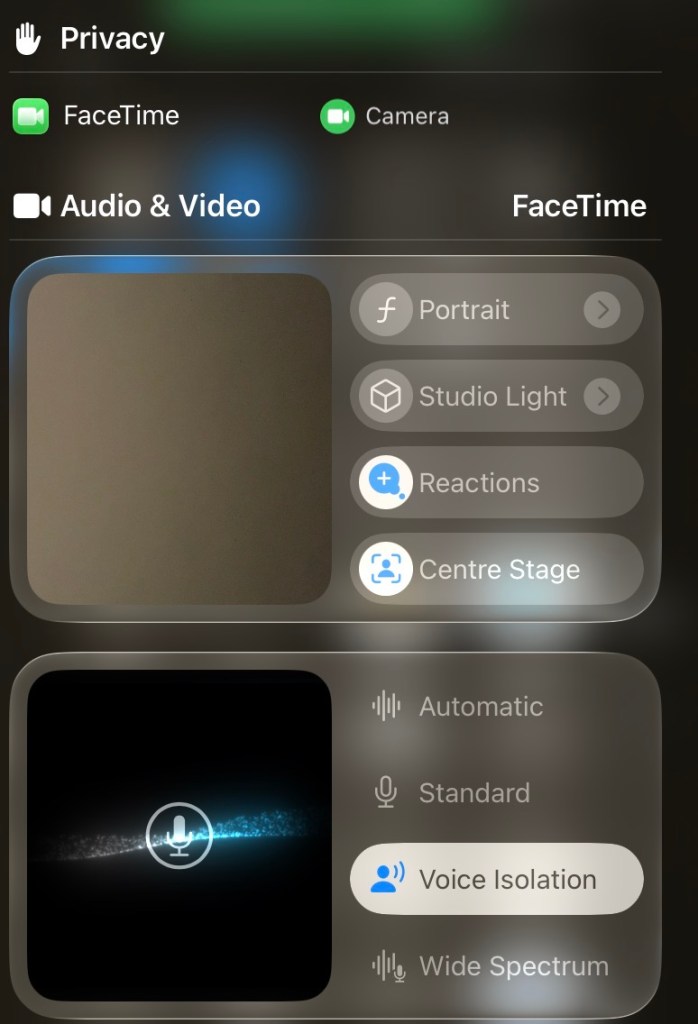
You will be greeted with several options here, they split into two categories, Audio and Video.
Video:

Portrait – presents a slider for you to increase or decrease the background blur. This is very handy to create focus on you if say you are on a work call for example.

Studio Light – allows the user via slider, to change the brightness of light on the subjects face.

Reactions – you can toggle on or off reactions. Reactions are pop ups that appear when certain actions are triggered. These include hand gestures such as the peace symbol ✌🏻, when shown in view of the camera, the screen will bring up Balloons on your screen screen. If reactions is turned off there will be buttons to select if you long touch your screen during a call.


Centre Stage – focuses the camera to ensure you are front and centre by adjusting the zoom. If you move the camera will follow you. If there are multiple people in view of the camera it will adjust to wide angle to incorporate everyone.
The second option in FaceTime Controls are related to audio and these 4 options are displayed:
Audio
- Automatic – this will automatically detect which mic preference to use.
- Standard – normal microphone setting which includes obvious sounds in the general area and background.
- Voice Isolation – reduces background noise and cancels it out. We use this feature allot in our company FaceTime calls. If there are multiple people in the room (physical room you are FaceTiming from), it will some times pickup their voices if you are quiet for a period of time. If you are not talking it is best to mute your mic to prevent any unwanted sound.
- Wide Spectrum – will increase the microphone sensitivity and broadcast a large amount of background sound. This is useful if you want the other person on the call to hear people around you who are not close by.
Memoji’s
Memoji – this feature will allow you to choose a character that will mimic your facial expressions and voice via a video overlay. The characters can include Memoji characters you have created in Messages. This feature can be accessed by touching or clicking on your camera persona displayed in the bottom left corner of the screen.

From here you can flip between the front and rear camera depending on what you want to display. You can also access the “Reactions” and “Camera Effects” – Centre Stage, Portrait & Studio Light.
If you love iPad focused content, then you have come to the right place, subscribe below 👇 to get our blog posts direct to your inbox.
Video Messages
FaceTime now allows the caller to leave a video message ,should the receiver not be available to accept their call. It works much like a voicemail however it includes video as well as audio.
SharePlay
This is a feature that allows users to experience content together, this can include tv shows, live events, Music & Games and other supported content. All users have to have access to the content in order to access it. For example if you want to SharePlay a TV show from “TV”, everyone who wants to watch the content must have a subscription to view it. This works in a similar way for Music.
A feature that this works well for is playing multiplayer games. Of course this needs be used with a compatible game that supports SharePlay.
Screen Sharing
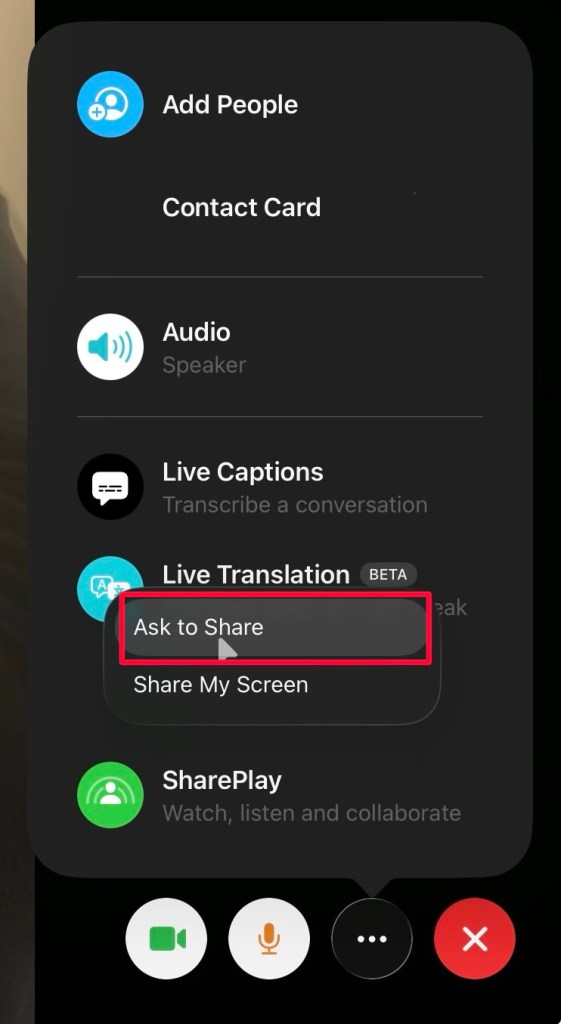
Share My Screen
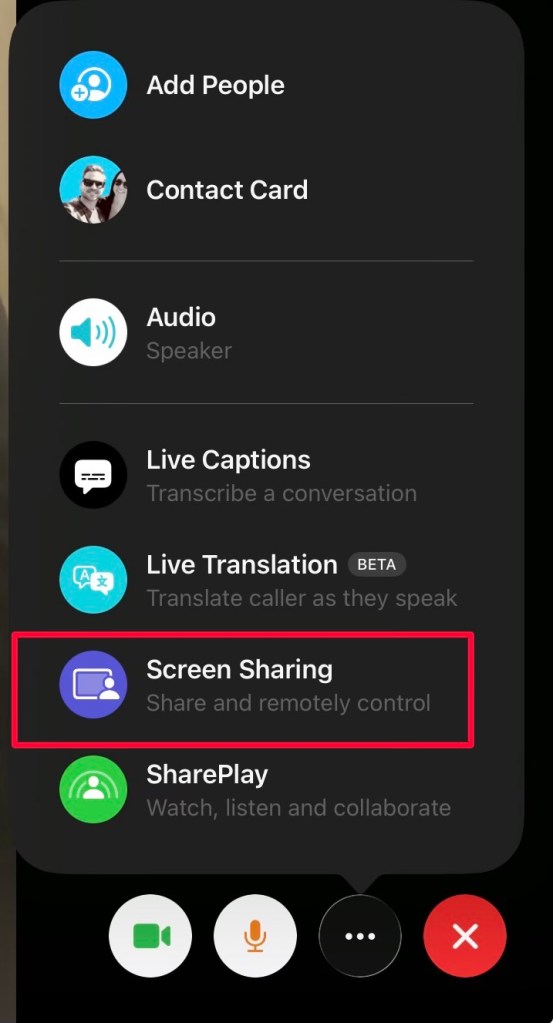
Personally Screen sharing is more versatile and provides more freedom for users and content. Not only from a business and productivity point of view but also for entertainment. One can share content from their device and it will mirror what is displayed on your device to the call. Apple always puts privacy at the forefront and so when one is showing sensitive information such as using a password to login into a website, the login details do not show.
Remote Control
A lesser known feature that deserves more attention which Matt wrote about in an article here, whereby users can request and give access for another user to take control of their device. This is very handy for anyone unfamiliar with the iPad Operating System or needs assistance with their device, apps or other content. This is only possible through 1 on 1 FaceTime calls and not available in group calls.
Switch between Devices
If you are using multiple Apple products, iPhone, Apple TV 4K, iPad or Mac you can switch between devices whilst on a call very easily through “Hand Off”. You must be signed in to the same Apple Account on the devices you want to switch between. This is very handy, particularly if you happen to pick up a FaceTime call from your phone away from your iPad, you can then switch to your iPad when you arrive back at your desk.
To do this during a FaceTime call
- On the device you want to move the call to, Tap the notification, this will appear as a FaceTime icon or phone icon at the top of the screen.
- Tap “Switch” or “Join”.
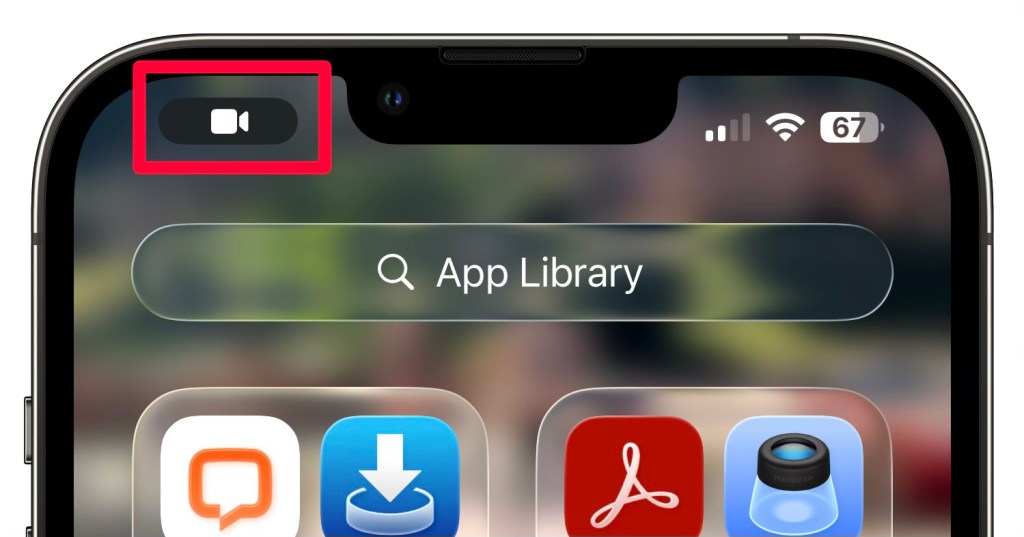
The call will move to the device you have activated it on. On the original device, a banner appears confirming that the call was continued elsewhere, along with a Switch button, which you can tap if you want to bring the call back.
Subscribe below 👇 to keep updated when we post our iPad content.
Thanks for reading!
Mike.
Over & Out!





Leave a comment