
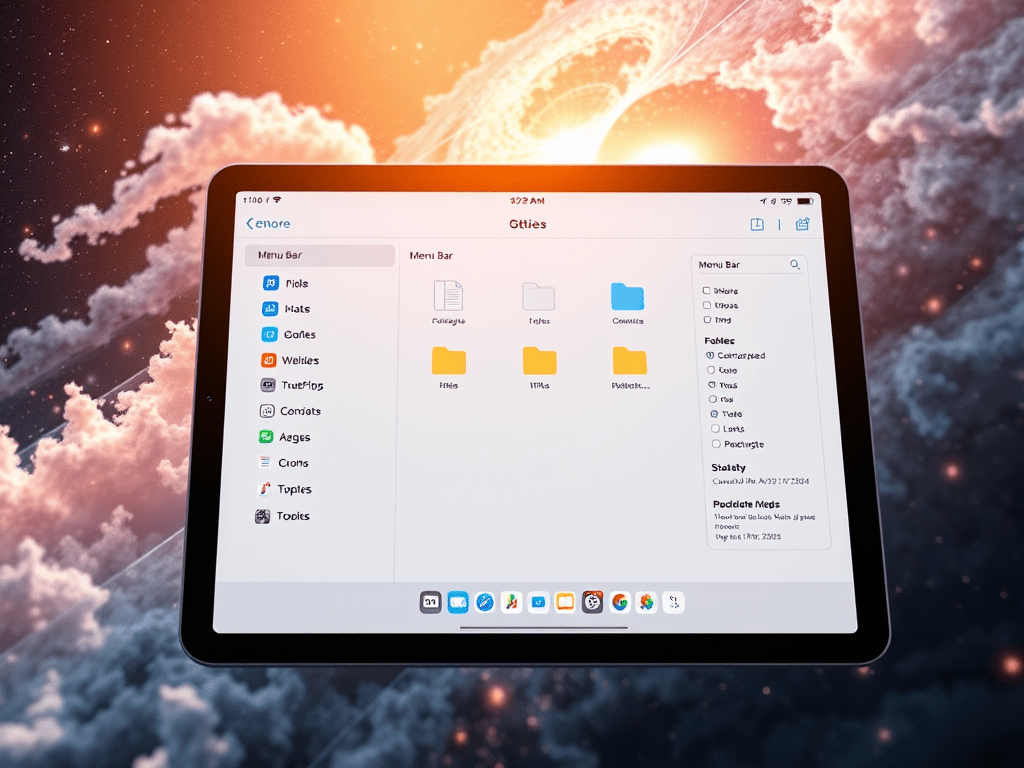
The Files app in iPadOS 26 introduces some great new customisation features, making file management more efficient. These features allow for improved navigation, folder customisation options, and seamless app integration. All of these features allow for a streamlined workflow for users.
- Menu Bar
One of the most noticeable changes is the new Menu, this is accessed when the multitasking Windowed Apps or Stage Manager are activated. Simply by moving your curser to the top of the screen or swiping down from the top (it should pop up before you start dragging your notification window open).

Previous versions of iPadOS only showcased the Sidebar. The sidebar provides quick access to iCloud Drive, local storage, shared folders, and tags. This persistent panel simplifies navigating between different file locations and managing content.
2. Go – Drop Down Menu
The “Go” drop-down menu allows quick access to recent folders, favourite locations, and network drives. This feature improves accessibility and reduces the time spent navigating through folders. One can use the “Go To Folder…” function to find specific folders and is handy if you now the file path.

If you enjoy iPad focused content like this then subscribe for FREE below, you’ll get notified when ever we post 📥
3. View Options
Through the use of the view menu users can customise how they would like to, well view their files. It an be organised by Icons, Columns and Lists to suit their preference for browsing files. There are also filter functionality through the use of “Sort By” and Group By”
Sort By – Files can be sorted by name, date, size, or type, providing flexibility in how content is displayed.

Group By – files can be displayed in separated groups by either their Kind, Date, Size or Shared by.

When it comes to displaying the files one can view as; Icons, Columns or a List, either one has it perks. Icons are great for viewing graphical content and one can change the icon sizes to allow for more or less content to be displayed. Small Icons: Offers a compact view for maximising screen real estate.
List view is great for files with similar information and longer detailed names. List View enables information columns to be resizable, allowing users to adjust widths for better visibility of file details. The user can also select what information they want displayed in the columns and can “Sort By” within each column.
The columns view works well for deep diving into nested folders. It’s allows the user to view all the contents of each selected folder in a new column. This is personally my favourite and go to view option.
One has the option to toggle “Use Groups” on and off. This function will sorts the List, Column or Icons by their file type.

4. Folder Customisation
Tag & Colours: Personalise folders with colour-coded tags for easy identification and improved organisation. The folder colour will change to the colour assigned to the tag.
Graphic / Emoji: Add graphics or emojis to folder names, making them visually distinctive and easy to manage at a glance.
To access the above bring up the contextual menu by clicking/touching & long pressing (right click with mouse or two figure tap on track pad) the folder. Then navigate to “Customise Folder & Tags…”

5. Set a Default App for Opening Specific Files and Types
iPadOS 26 allows users to set default apps for specific file types. This means PDFs, images, or text files can automatically open in your preferred app, improving productivity. To access this feature you need to bring up the contextual menu > Get Info > Always Open With – select an app from the drop down list.


7. Keep Downloaded
The “Keep Downloaded” feature ensures important files remain available offline. Users can mark specific files or folders to be downloaded on the device, even when internet connectivity is unavailable.
8. Add to Dock
Frequently accessed folders or files can be added directly to the Dock. This provides quick, one-tap access, enhancing multitasking capabilities on the iPad. There is also a handy feature which allows the user to scroll through the list of documents in the folder. You can customise the folder in the dock by long pressing it, right click with the mouse or two figure tap on track pad. This will allow you to sort by name, dates and kind as well as view in fan or as a grid.
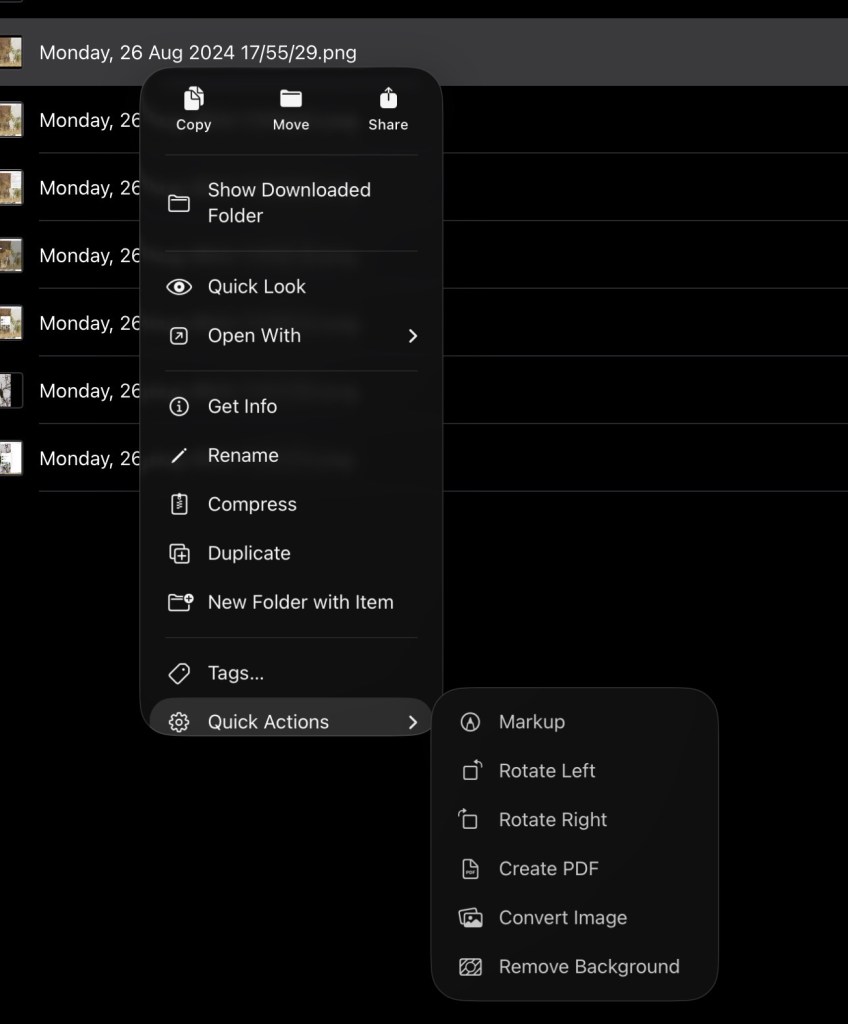
9. Quick Actions
This is a great feature for quickly editing images or PDF’s. For images one can Markup, Rotate Left / Right, Create PDF, Convert Image or Remove the Background. For PDF’s the “Quick Action Tool” provides access to Markup and Optimise File Size.
To access this feature you need to bring up the contextual menu and scroll to the bottom. Not all file types support quick actions.
If you are an iPad enthusiast of simply love learning how to get the most out of your iPad, then subscribe for FREE below 👇.
Thanks for reading,
Mike,
Over & Out!





Leave a comment