

Whether you are a beginner or a pro these must know iPad tips will help you make the most out of your iPad and boost your productivity.
Beginner Level
1. On Screen Keyboard Cursor.
If you don’t have a track pad connected or you are using your iPad as a tablet, this handy feature makes moving the cursor around so much easier. Simply raise the onscreen keyboard and using two fingers, slide your fingers around the keyboard to control your cursor. This is much faster and more accurate than trying to tap between characters to move the cursor.
2. Lock your screen just with your keyboard.
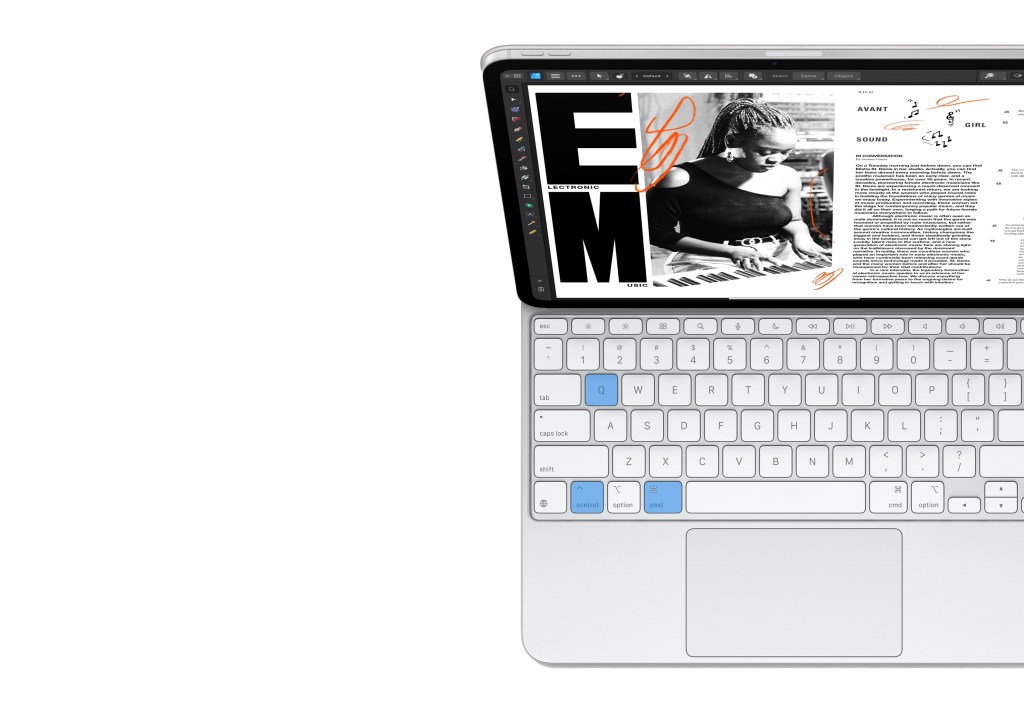
It may seem simple but this keyboard shortcut is very handy and one I use everyday. Need to step away from your iPad, then don’t lift your arm to the power button, simply please cmd + control + Q if you have a keyboard 🎹, lock your iPad.
Use Spotlight Search to get to Apps
Spotlight search can do so much more than you think! Here is a great article we wrote showcasing a bunch of SUPER useful, lesser known things Spotlight Search 🔍 on iPad can do. Evoke Spotlight search by pressing cmd + space on your keyboard, or simply swipe down with one finger from the Centre of our iPad on your Home Screen, now just type in the name of the app or what you are searching for, but remember it can do SO much more, so check out the article, you’ll be glad you did 😉.

4. Make Control Center More Utilitarian 🛠️
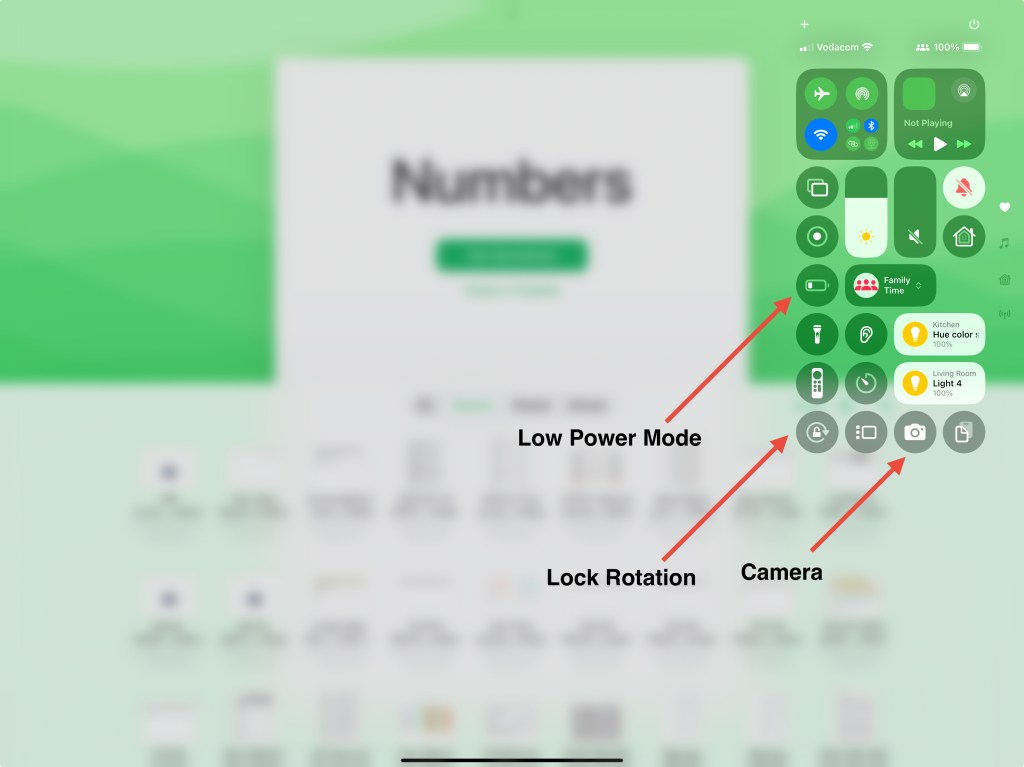
Control Center is conveniently located on the top right hand corner of your screen and can be accessed anytime, by simply swiping down with one finger from the top right hand corner. Having this available at anytime means Control center is a great place to keep handy shortcuts to everyday controls, such as; Camera, Low Power Mode, Lock Screen Rotation or Do Not Disturb.
To add more controls to control center simply swipe down from the top right hand corner, then tap the small “+” icon at the top of the screen, then tap “Add a Control”.
By doing this you will save a ton of time accessing controls you may use regularly which other wise may be in the App Library, or in Settings itself.
5. Use a Pinch in Safari to see all your Tabs.
One of the iPads strengths is how visual the operating system is, as apposed to trying to read each tab title in safari, it is much easier and quicker to visually see what you have open. To do this use a two or three finger “pinch” as shown in the video below 👇.
“If you are enjoying our content, help us keep it ad free by subscribing below 👇, we have some exiting things cooking and coming to the site shortly, thank you.”
6. Long Press the Tabs icon in Safari
Staying on the Safari topic, closing all your open tabs can be a frustrating task, did you know you can actually long press the “tabs” icon on the very top right of your safari screen, to close all your open tabs in one go 👍, see video below.
7. Slide Over
Slide over is the most convenient way to access quick info, simply drag an app towards (but not to the very edge) of the right or left of your screen. Slide over is ideal for, Messaging apps, Calendars, Reminders and task managers, apps you check in with throughout the day.
8. Low Power Mode – does more than you realize!
Low power mode is a fantastic feature that extends the battery life of your device if you are running low. You can find it by using spotlight search with cmd+space and typing in “Low Power Mode” or you can find it in settings by using the search bar. Low Power mode can give you extra hours (depending on what you are doing of course) when you are in a pinch.
Low Power Mode dims you screen, limits certain background app refreshes, automatic downloads, 5G and cellular. What many people don’t realize is that Low Power Mode reduces CPU clock speed and voltage by restricting the CPU frequency and cores to conserve power. So yes, it’s not ideal to have on when you are playing graphics intensive games.

9. Use your iPad to charge your iPhone
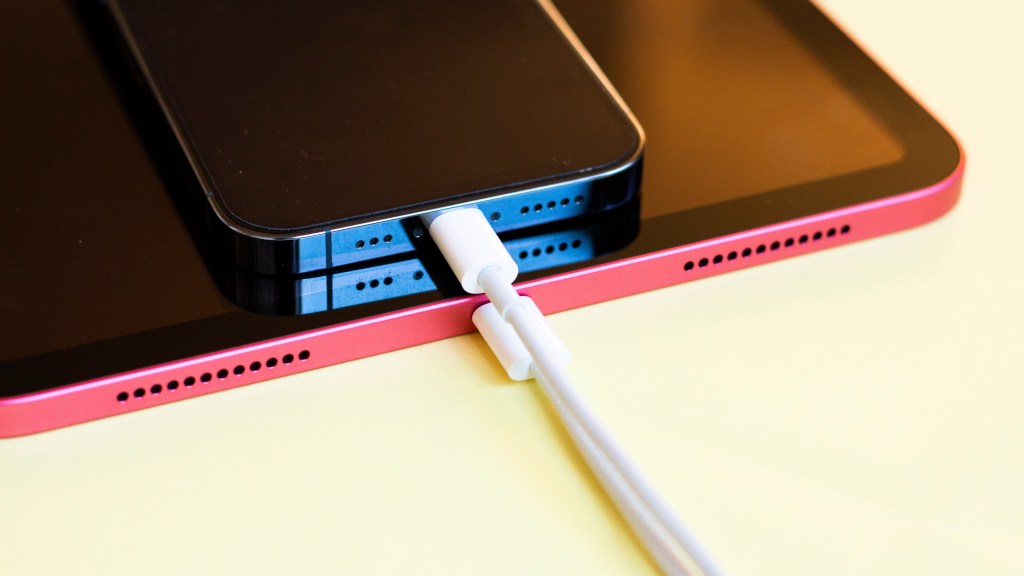
Yes you heard that correctly, most people do not know that this is possible. If you are in a jam and need to charge your iPhone, say if you are hot spotting from your phone, or perhaps you are in an airport or coffee shop far from a charging point, you can charge your phone from your iPad, just get a cable i.e Type C to Lightning and you are good to go.
10. Your iPad has a built in Scanner
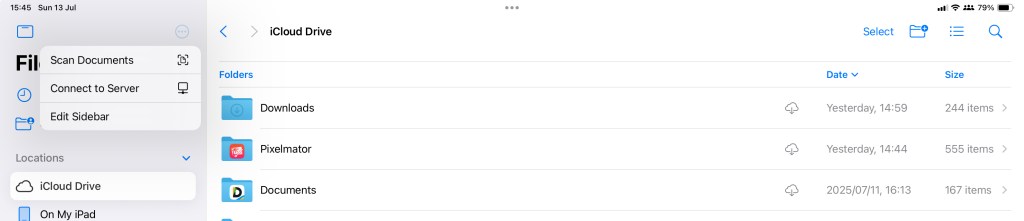
No need for scanning from your printer, your iPad has a great scanner. All you need to do is go to the Files App and select the three dots menu at the top and there you will find “Scan Document” as depicted below. Alternatively you can go to the folder you wish to add your scanned document to and “Long Press” in that space, you will be presented with a menu with “Scan Document”.
Tips for Pro’s
1. Safari can read articles for you
There are many occasions where it is easier to listen than to be focused on one web page in order to read, you may have some industry news articles you want to catch up on while you browse your inbox or casually search safari, in these instances having Safari read the page for you really does help.
2. Shortcuts
If you are not taking advantage of Apple’s Shortcuts App, you are most likely missing out on treasure trove of potential time saving shortcuts that can help you get tasks completed quicker and improve your productivity. A simple example of this which I love, is a shortcut for quickly sending a routine mail to a customer. I have a number of these email shortcuts saved to my Home Screen in a folder, all for different customers. The shortcut takes care of 95% of the work for me, as I have a pre selected who the mail is sent to, the subject and body of the mail. So All I need to do is tap the shortcut and the mail is composed for me in a second. I then simply check if I want to change anything and tap send.
Shortcuts can save you a ton of time, particularly when you perform a task regularly which a lot of people do, but there is so much more they can do, if you are serious about productivity, investigate shortcuts.
3. Colour Picker
If you dive a little bit deeper into your screen shots, you will find nestled away in the annotation tool picker, a very handy colour matcher. This is great for anyone trying to match a colour for adverts, marketing, website design and so much more. See our video below on where to find it.
4. Take notes easier and more legibly
The iPad is incredible for note taking, but not all of us are competent neat note takers. One easy way you can fix this is by adding “Grid Lines” to your notes. All you need to do is;
- Open a new note,
- Select the “three dots” on the top right of the note
- Select “Grid Lines”,
- Choose the style you like.
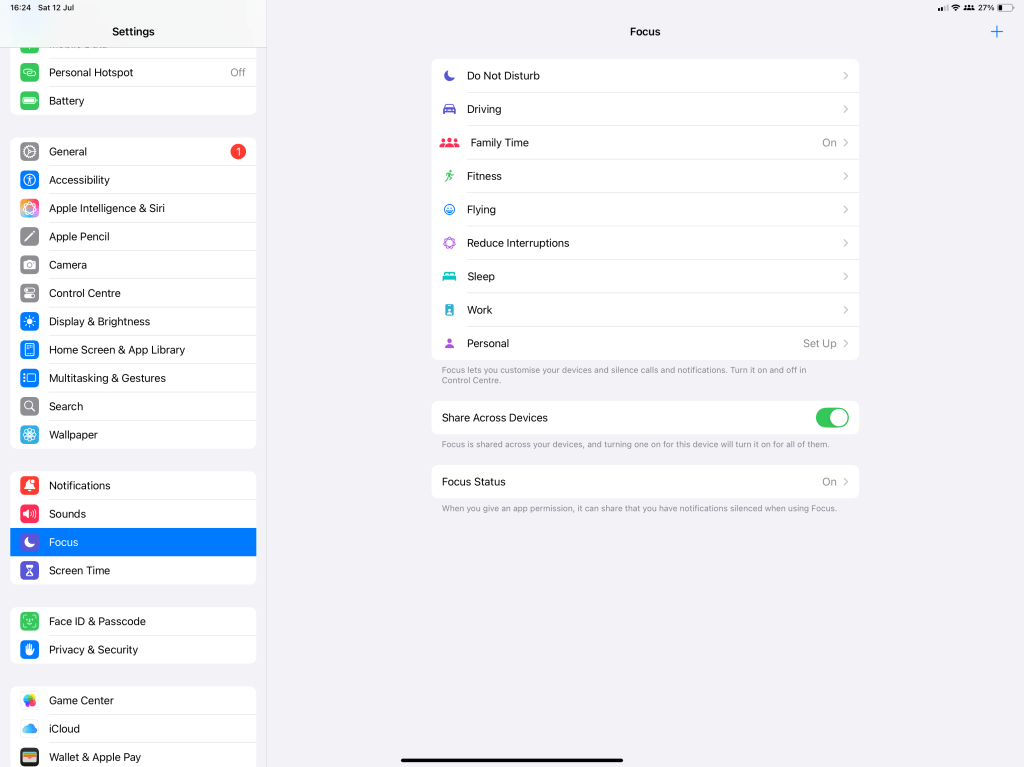
5. Focus Modes really help!
Focus modes are great for removing distractions, in my case I use them for Work, Fitness, Flying, Sleep Time and Family Time. In my Family Time focus mode, I have an automation that activates the Focus mode when my work day finishes and disables all my work related notifications, such as email, message notifications from certain people as well as from other work related apps . I have found this really helps and it makes me feel good whenever I see it enabled because deep down I know I am taking extra steps to putting my family first 😊.
Focus modes are also easily accessible and you can toggle them on and off quickly, you can add them to Control Center or type the name of the Focus mode in spotlight to find it.
To set up your Focus modes, go to Settings > Focus, and tap the + icon in the top right to get started.
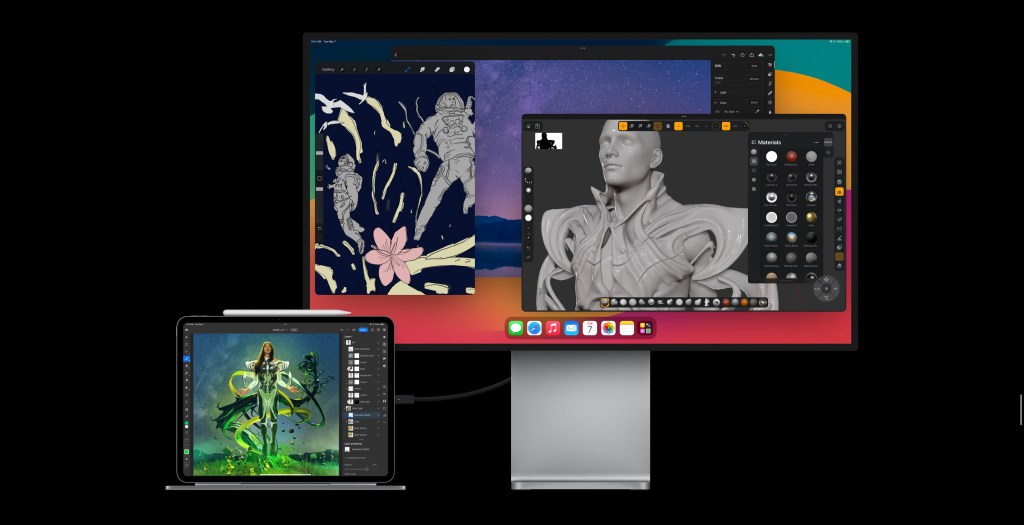
6. Invest in a long USB-C cable
If you use your iPad connected to an external monitor, then an extended USB-C cable will add a lot of value to your set up. Having a longer USB-C cable means I don’t need to unplug my iPad from my monitor should I have to annotate or mark up a document, drawing or sign a pdf, I can then lift the iPad off of my Magic Keyboard case or Stand and lie the iPad Flat on my desk, allowing me to comfortably annotate, sign or write on my iPad, all the while still being connected to my external monitor and dock.
The down side is these longer data and power USB-C cables are, they’re expensive, but they are worth it. Another bonus use for these cables is that they provide extra length for reaching charging plugs, you know the ones that are just too far from a couch or desk, so there’s a bonus 👍.
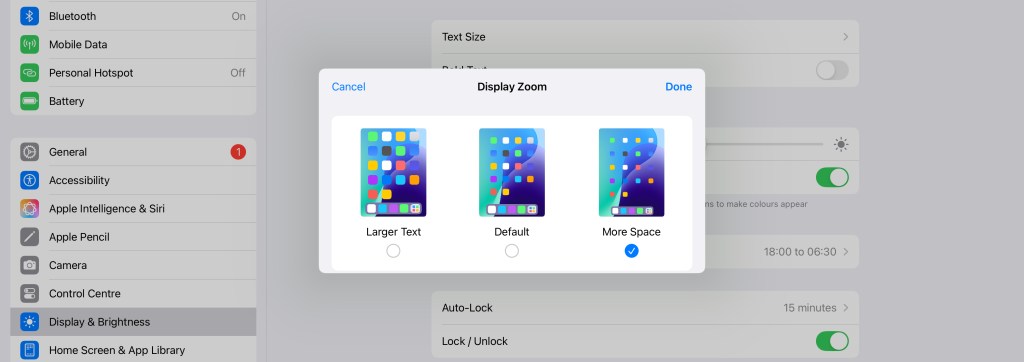
7. Use “More Space”
More space is a special feature that allows your device to fit more screen content through display scaling. To do this screen, text, icons and apps are reduced in size to make way for a larger display canvas. This feature is great for power users who want to see more on their screen at one time.
To enable More Space, open the Settings App on your iPad, scroll down and select “Display and Brightness”, tap on “Display Zoom” and select the “More Space” option. Your device may need to restart in order to apply these settings.
8. Get the job done faster with “Dictation.”
Dictation is arguably one of the most powerful productivity tools and also one of the least used. Voice will likely be the foundation for how we interact with AI and our most personal devices in the future, but voice to text is already here and it’s called… Dictation, and it’s very useful!
To help this feel more natural, Apple have enabled users the ability to interject and type when they feel it is easier to do so, without ending the dictation. This means you can type when you feel its easier and start speaking when you want to without having to reenable dictation.
I personally use this feature a lot in mail and my task manager. Two commands I find very useful to know are “new paragraph”, to move to a new paragraph and to add an emoji just describe the emoji.
If you know what you want to say, dictation is significantly faster than typing and it’s great for mail, messages and notes, just enable dictation and speak what you would type. See our video below on how to set it up.
9. Long Press Your Apps
An often forgotten about feature in iPadOS, is the hidden menu located after a long press on an app. For power users and enthusiasts, this menu which displays after a “Long Press” can be feature rich and extremely useful. Take the Files App for example, a long press reveals recent files and doc’s and even allows you to expand the view to reveal more of your history, eliminating the need to 1. Open the Files App, 2. Select “Recents” and 3. choose the File/Doc, saving your 3 taps! This type of preview is also available across Apples iWork apps, as well as many well known productivity apps like PDF Expert, Procreate, Pixelmator and more. Always check your most used apps to see if they offer this functionality with a long press, it may save you a lot of time.
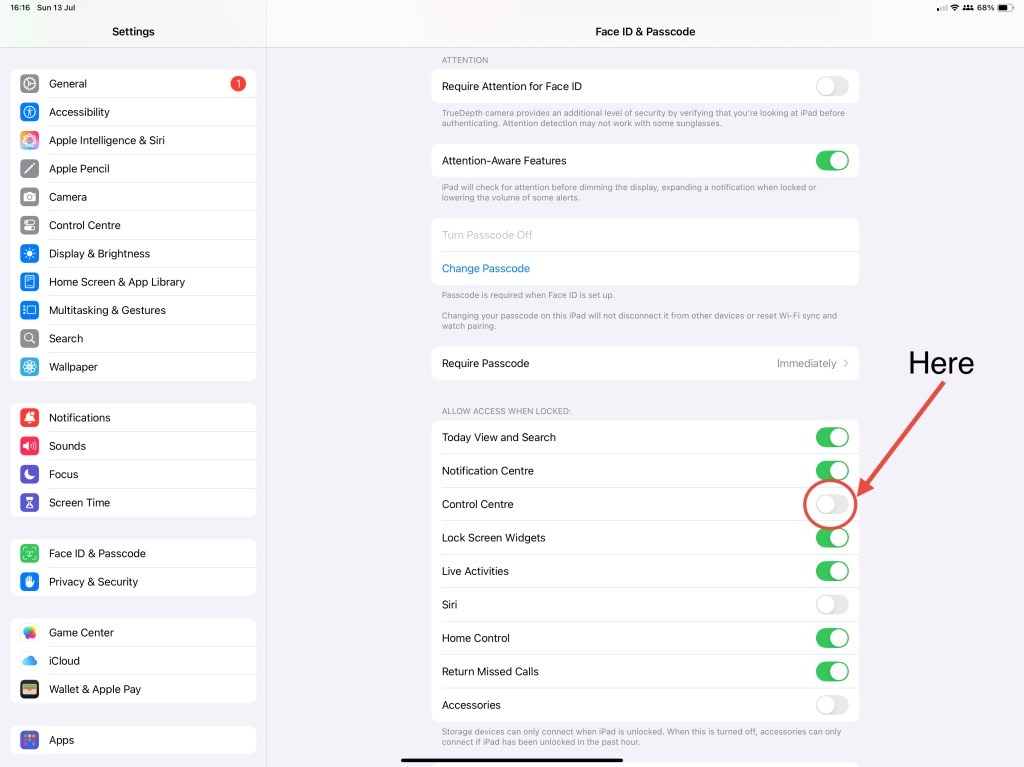
10. A Security Pro Tip
Make sure your Control Center is not accessible when your device is locked 🔒. Reason being, if your device is stolen, the thief can access your Control Center and switch off your WiFi, Bluetooth & Mobile data, making it much more difficult for you to locate. To prevent this from happening you need to disable Control Center from being accessible when your device is locked. To do this go to “Settings”, scroll down and tap “Face ID & Passcode”, enter your passcode and then disable Control Center.
If you enjoy iPad specific content like this, then subscribe for free below, you will be joining a special iPad community, it also helps us keep our site ad free and content rich. By subscribing you also get notified when we post and we promise never to spam.
Thank you for reading, thats all for now.
Matt



Leave a comment