

For the most seamless experience, I prefer to use the native Apple apps with many of my workflows. These include the iWork suite of Apps from Apple such as Pages for documents creating, Numbers for spreadsheets and Keynote for presentations. I particularly enjoy using the Notes, Calendar and Reminders not only on their own but in conjunction with one another to build my own custom workflows. These apps are simple in design and just make sense without the complexity of having to build and design your own task management workflow. So why notes?
- Quick Notes
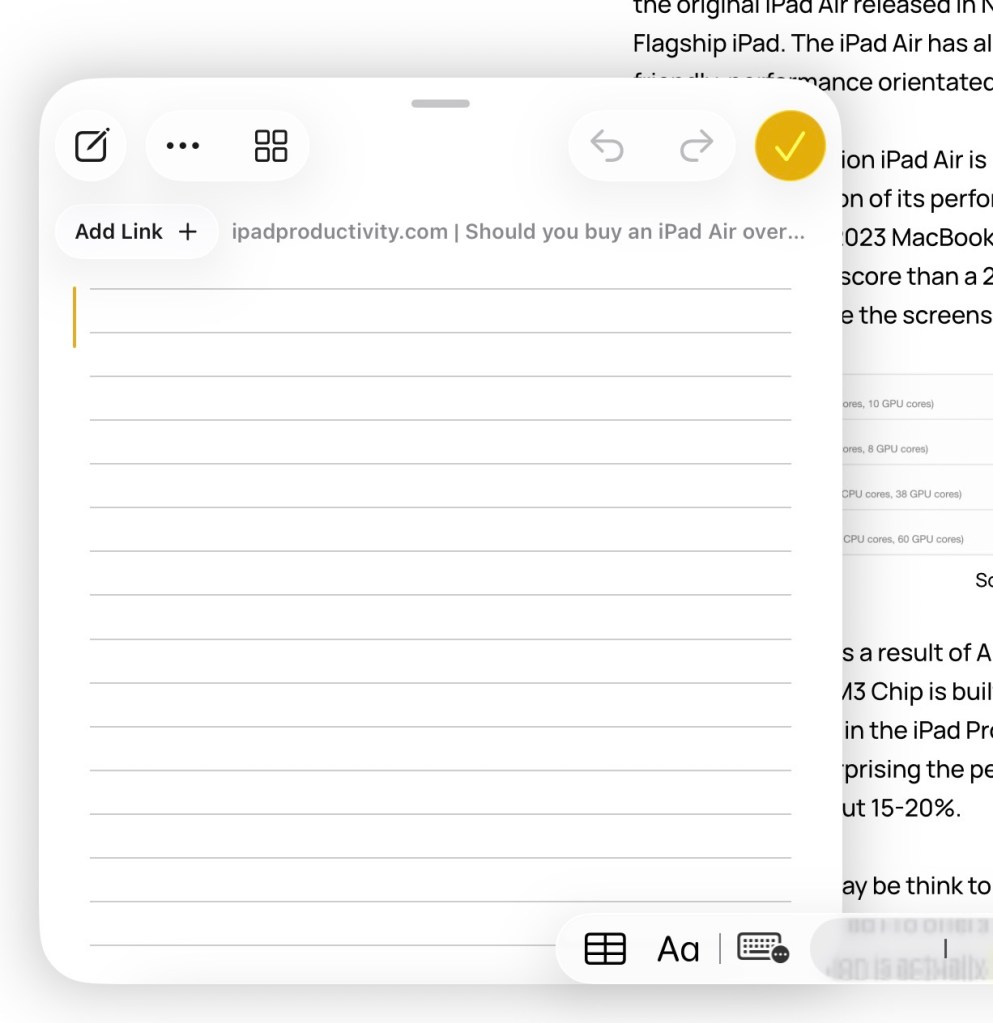
- This is a great feature for starting a new note when you are busy in another app or with a task. Say you receive a phone call and need to jot down some inforamtion quickly without having to pause the conversation to find and create a note in a designated location. You can simply use the keyboard short cut “🌐 + Q” on your keyboard or “fn + Q” on other non-Apple keyboards, to bring up a small window where you can start typing a quick note. Simply repeat the keyboard shortcut to minimise it. If the prompt opens an existing quick note , simply press “command+ N” this will bring up a new quick note and if you are on a web page it will provide the option for you to add the link.
- Folders & Sub-Folders
- This is great way to organise your notes. One can create a parent folder and have sub-folders with in sub-folders. This is easy to do and there is the ability to hide or show the container folders from the side menu.

- Smart Folders
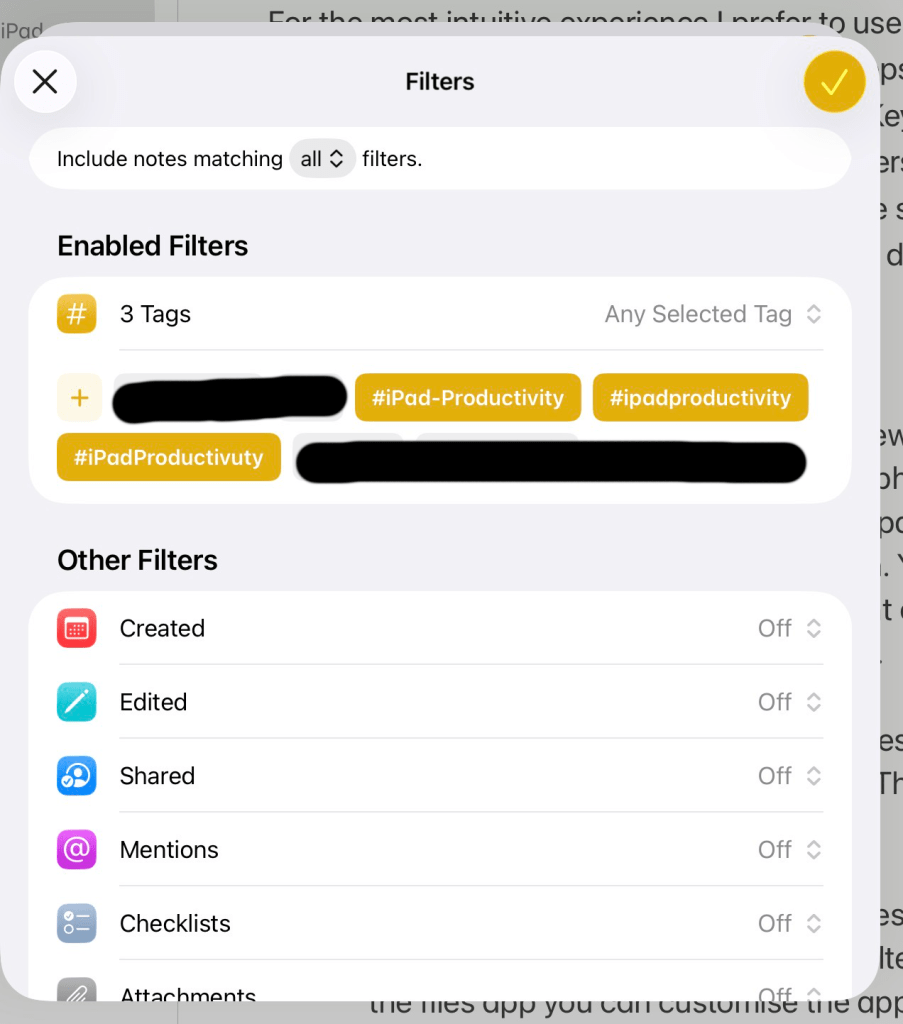
- This is a fantastic feature that arranges your notes into folders by the tags assigned to them. There are several filter options to choose and just like the files app you can customize the appearance of the folders. One of the filters includes the ability to include or exclude folders. By adding tags to a quick note and providing you have setup smart folders to include that tag, your quick notes will automatically be organized into their designated folders.
- Versatility
- With the attach function in the menu, you are able to add multiple forms of media and documents to your note to make it as information rich as you choose. These include scanned documents, images, photos, audio, files as well as images from Apple’s AI App “Image playgrounds.” The user can also make use of Apple Intelligence to re-write or make changes to their note.

- Scan Text
- This may seem like a simple tool but it works really well for extracting text elements from books, documents, notes and other images. Simply select the “Attach” / “Paperclip” function and aim the camera at the text you wish to capture, then tap the text elements you wish to add. Unfortunately you can only add one text element at a time and have to reactivate the function with each new scan. It would be great if there were some options to have a multi-select, so you can add more than one text element.

Thanks for reading!
Mike.
Over & Out!




Leave a comment