

Most meetings in life require capturing notes of some sort, however when you are engaged in a virtual meeting, accessing a note can be a little bit more complicated, particularly when your note taking device is used for the video call as well 😰.
The Problem
During a virtual meeting you don’t want to be caught unexpectedly needing to capture a note then frantically searching your iPad to find an app or space to type your notes in. This can look wildly unprofessional when your customer, client, teacher, student etc, can see you are clearly moving your head and eyes around your screen, creating the impression that you are obviously not giving the other person in the meeting your full attention.
A Quick Simple Solution
The most simple, intuitive method for solving this problem which many people either forget or don’t know about, is to invoke a “Quick Note” by dragging your finger from the bottom right hand bezel of your iPad towards the center of your screen. This will present you with a small “Post-It” sized note to capture your meeting notes without interrupting your video call. You can write in it with an Apple Pencil or just type in it. If you have stage manager enabled with an app in “Full Screen”, then the alternative approach below will work better.
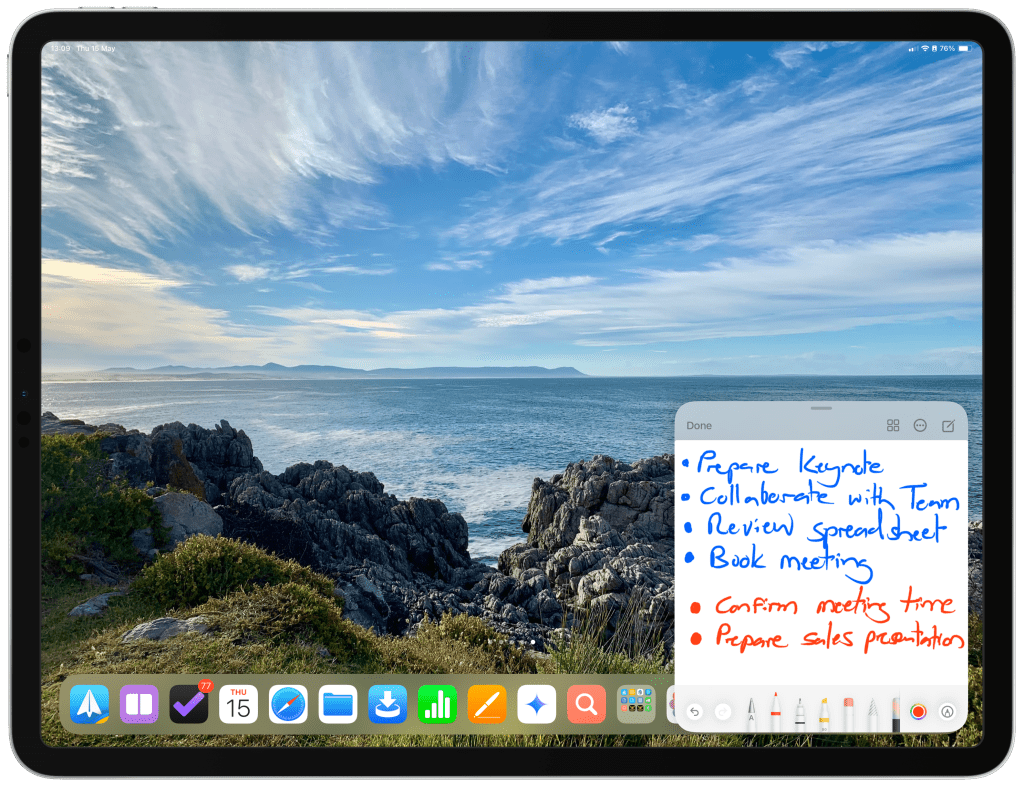
Alternatively remember this keyboard shortcut “Globe + Q”. No matter what screen or app you are on, this keyboard shortcut invokes the “note tab” or grab handle from the bottom right side of your screen, which you can tap or click to open the “Quick Note” window.
Double Check Your Settings
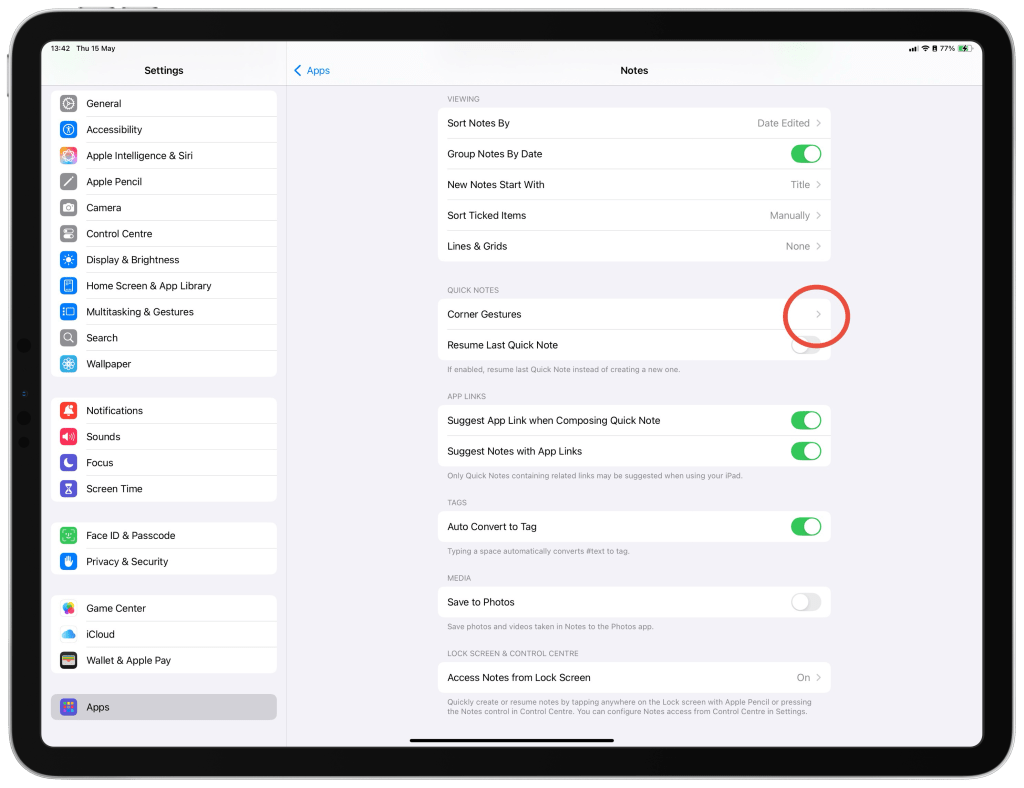
If your quick note is not triggering, you may need to check your “Corner Gestures” setup in “Settings”, “Apps”, “Notes” as below 👇.
This very basic, yet handy tip has helped me in many meetings and remembering it may be helpful to you too.
Thats all for now,
Cheers,
Matt





Leave a comment