

Here is an effective shortcut that sets you up for success in your morning productivity routine ☕️ .
Many iPad users actually prefer working on thier iPads with stage manager switched off, this is in large part due to the simpler, more space efficient multi-tasking that split screen still offers. Now this isn’t to say Stage Manger is not useful, there are of course excellent use cases for stage manger, however if you are one of the people who prefer working in Split Screen, then this shortcut may be great for you!
How it works.
With a single tap, this shortcut opens your desired apps, in your desired split screen arrangement, whilst at the same time layering the apps you want in Slide Over on top of each other, enabling you to spread or cycle through them when you need them. This super fast workflow jumps you straight into productivity mode, by opening the right apps, in the right positions, setting you up to be productive.
Why you should use a shortcut like this in your professional life? 🤔
Reason 1: Time – As they say, time is the one commodity you can’t get back! For me, if I can save some time consistently, each day, I see that as a huge win. Gaining valuable time repeatedly via a shortcut that does it all for you adds up and when you look at the bigger picture, say over a week or month, it’s a lot.
Reason 2: Getting in the zone – Research shows we are more productive early in the morning, hence why it is more important than most people may realize to get into the zone first thing. I personally find I do my best work early in the morning. This shortcut puts the apps that I need to be focused on, front and center on my iPad Pro when I start my working day. This greatly reduces the likelyhood of me straying from whats important to do something else, say open YouTube, safari, X or the news. With just a single tap everything I need is open in an instant and I am ready to go!
How I set up this shortcut to be productive.
My task manager is fundamental to ensuring my day has structure and that there is a co-hesive plan to achieving my tasks and goals, so that I don’t drop the ball. As a result the app Omnifocus (my task manager) is designated to the left side in Split View. My email app of choice is Spark, needs to be on the right hand side, like many people this is the primary way I keep in contact with customers, suppliers and principles. In SlideOver I will have iMessage – simply because this is my primary messaging app and also how our company talks to each other. Lastly I will overlay Reminders and Apples Calandar on top of iMessage in Slide Over, so that I can cycle through them quickly when needed. For those who don’t know what “Slide Over” is, it is the space where an app occupies one third of the screen with the ability to move/slide in and out from of the sides of your iPad, see below 👇). This allows me to check what meetings and events I have that day and which important company reminders my colleagues may have assigned me too. This is how I get started in my day.
First lets get the App
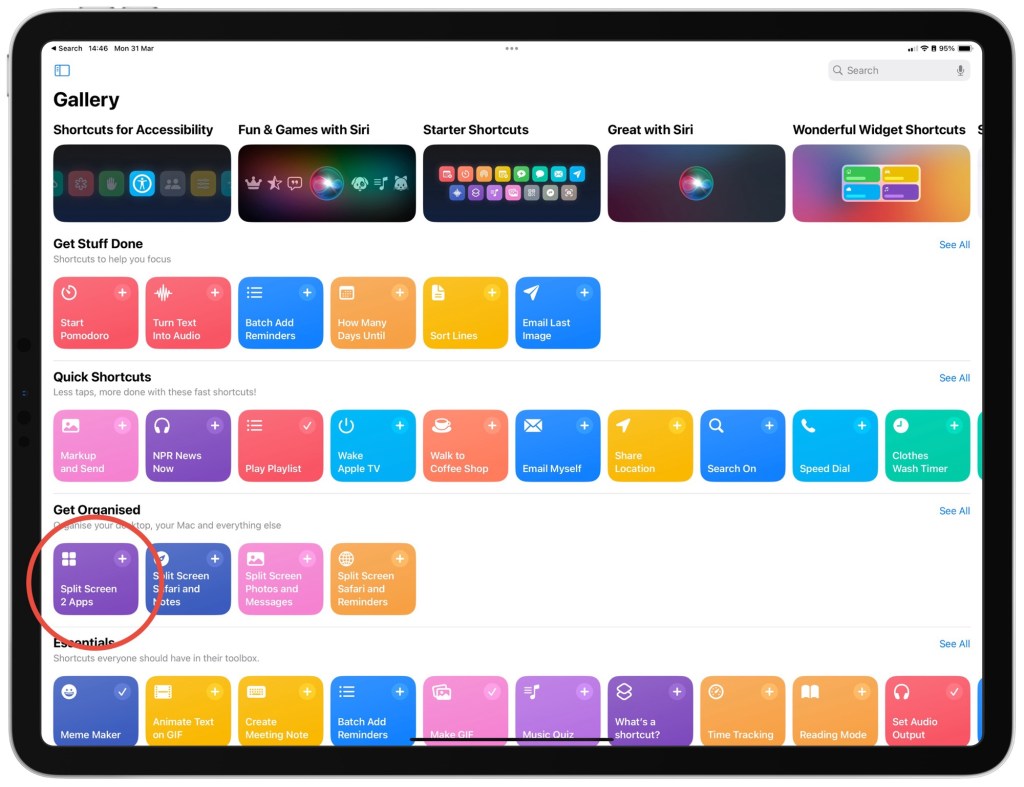
In the Shortcut App, tap “Gallery” in the side bar. You will then see the shortcut under the get organised section, Titled “Split Screen 2 Apps”.
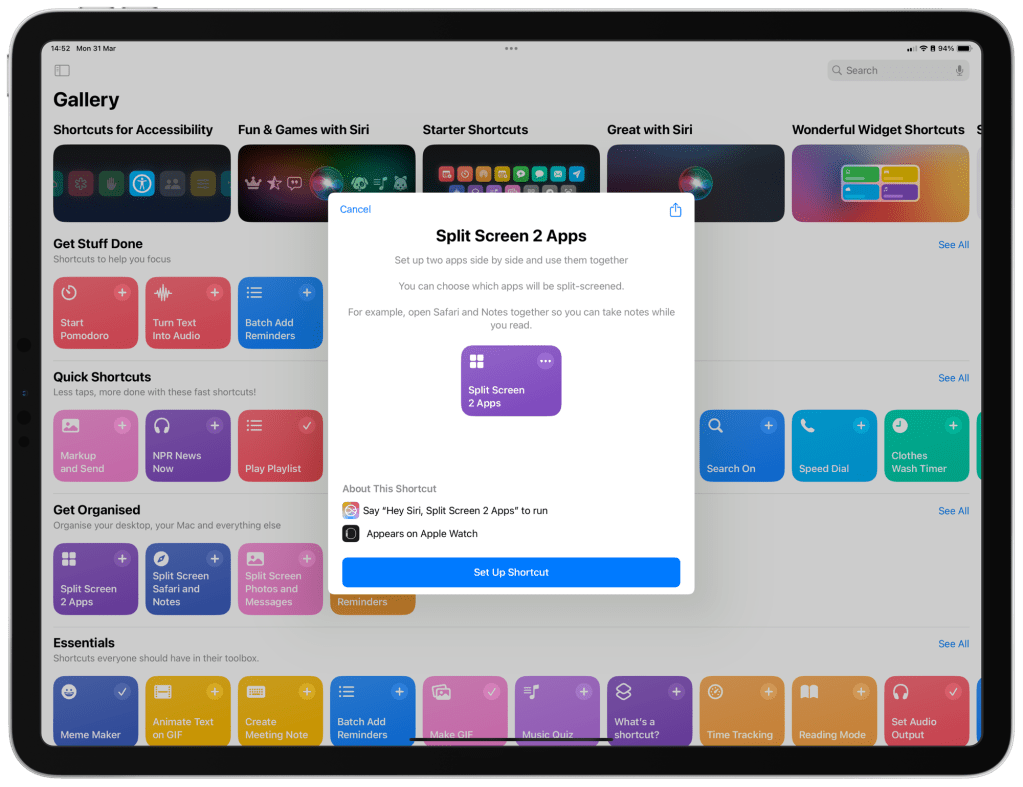
Tapping on this shortcut and you will be presented with a window and button to “Set Up Shortcut” as shown below, Tap “Set up Shortcut” and follow the prompts to decide which apps you would like on the left and right side of your app layout. – the key here is to think hard about what you need to be productive in your morning (app wise of course).
Once you have tapped “Set up shortcut”, a new window will ask you to “Configure This Shortcut”, as below 👇.
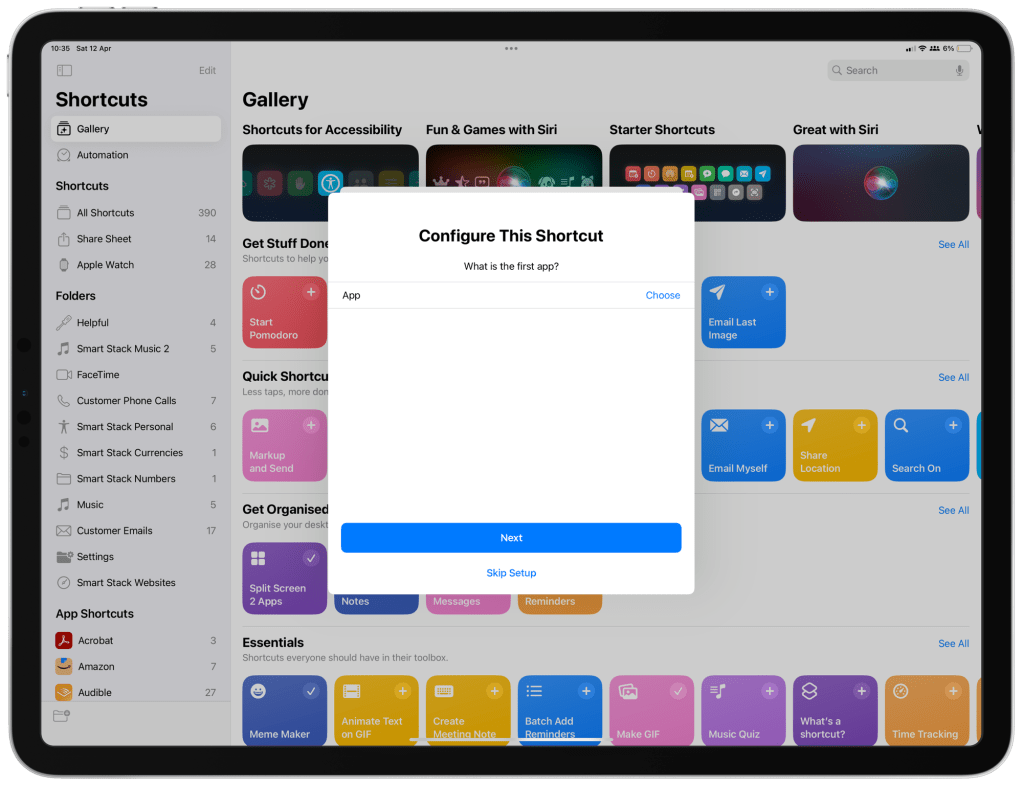
Tap “Choose” to select your first app in your layout, then find your app and select it, then tap “Next”. Now do the same for the second app in your layout and tap “Add Shortcut”.
Now let’s make it more powerful
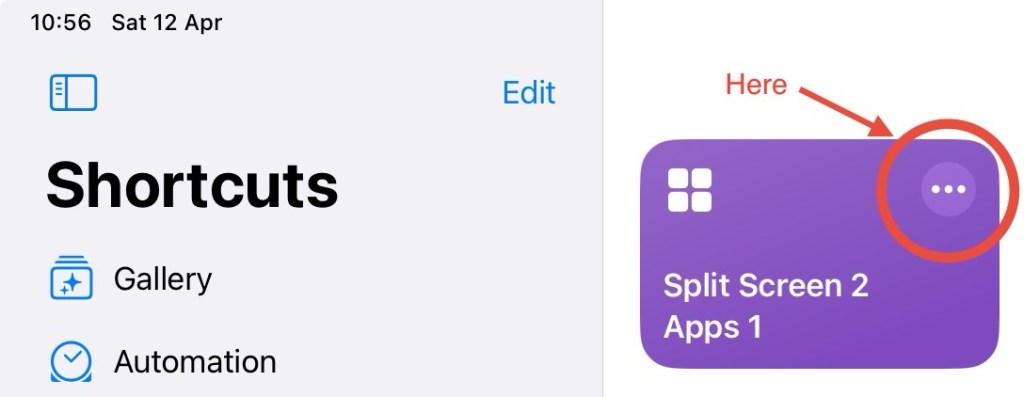
Find the shortcut you have just added and tap the “three dots” in the top right hand corner of the shortcut as below.
Now in the “Search Actions” bar, type “Open App”, select it and tap the “App” field and choose the app you would like to appear in slide over. Then tap the “<“ (Less Than symbol) and tap the “Slide Over” toggle to enable it. Repeat this process if you would like to include another app in slide over as well. Here is a video below to help 😉.
To save this shortcut to your Home Screen, tap the “i” (information) icon, then tap “Add to Home Screen”, you can rename the app and choose the app colour, icon or your own photo if you like, this should look like the below.
Now all that is left to do is to add the shortcut to your Dock or Home Screen, which ever you prefer. I prefer this in my dock so that it is ready for me to tap no matter which screen I am on in the morning.
From here you can customize this shortcut as you see fit and power up your morning productivity routine 💪.
Thats all for now,
Cheers,
Matt




Leave a comment