

A great way to speed up your productivity on iPad, is to be able to access information quickly. So let’s look at one ULTRA FAST method of grabbing information in literally less than a second, no matter where you are on your iPad, and yes we timed it!
One of the things that makes an iPad great is its speed. iPads by design are made to be fast and they have to be, to keep the users touch interaction natural and fluid, couple this with the intuitiveness of touch and you have the ideal work device, that is if you know how to take advantage of it of course.
So the premise of this Pro Tip is to ultimately reduce taps or clicks and combine that with taking advantage of a few software hacks. A quick way to achieve this is to have a custom Files widget on your Home Screen. The beauty of having a widget on your Home Screen is that you can get to it very quickly and in a variety of ways too.
Why use the Home Screen
The Home Screen is like the desktop of a computer. It’s a place you can always default to if you need to get to something very quickly.
Here’s are the fastest ways to get to your iPad’s Home Screen;
- Swipe up with four fingers on the screen or trackpad.
- If you have an iPad with FaceID, you can swipe up with one finger from the ‘home bar’ at the bottom of the screen.
- Or you can press cmd+H if you have a keyboard
- Or simply press the home button if your iPad has the circular Touch ID button.
Now that you know how to get to the Home Screen quickly, it’s time to get the second part of this recipe – a customized Files Widget.
Step 1 – finding the Files Widget
- Long Press the “Home Screen” till the screen goes into Jiggle mode.
- Select the plus button at the top left of the screen
- Using the side bar, find the files App and tap it
- Select the files widget you want.
Step 2 – Customizing the files Widget
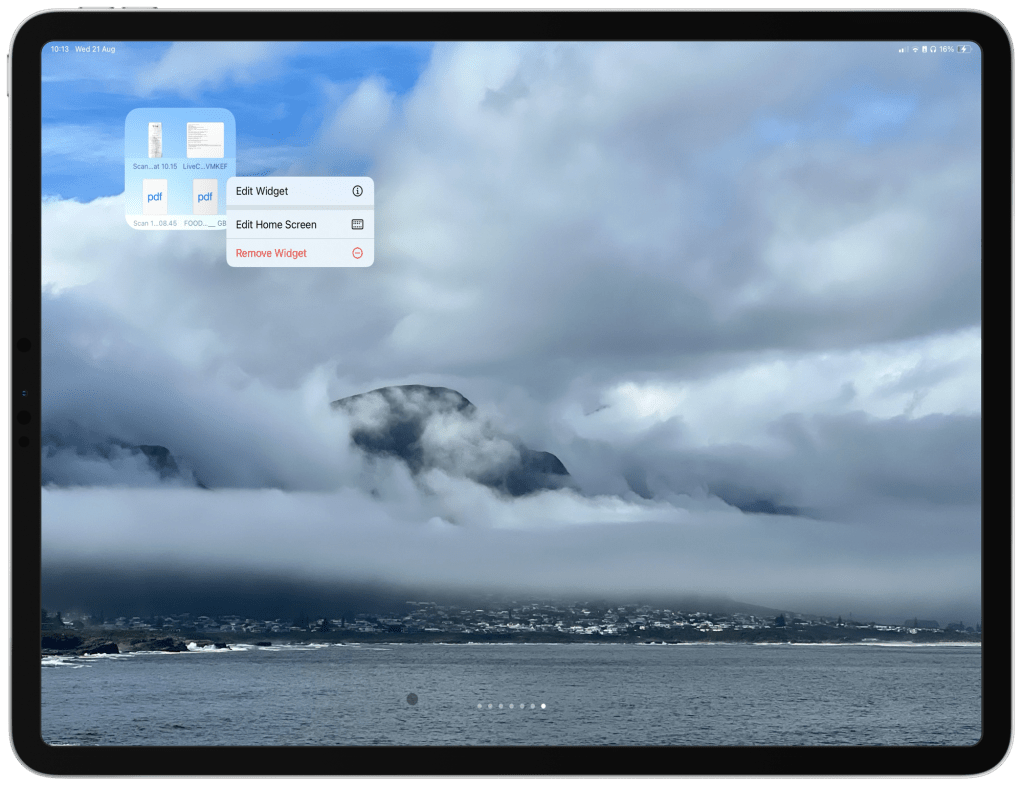
- Now that you have the “files widget” on your Home Screen, long press the files widget, or move your cursor over the widget and two-finger press the track pad. You should see a menu like this Picture below point 2👇.
- Click or tap “edit widget” and you will be able to change the location in files that the widget refers to.
Step 3 – For Power Users
(You can be even more specific and choose files from different locations to show in the same widget!)
- Go to the Files App and navigate to the file you want, long press the file or two-finger click your trackpad to reveal the menu.
- Tap or click “tags” from the menu.
- Then tap “Create new tag” from the top of the menu.
- Name the Tag i.e “Home Screen Files Widget 1”
- That folder will now be tagged with that newly created tag.
- Now you can tag other files you want to appear in the Files Widget on your Home Screen by using the same method, just make sure you select the newly created tag i.e “Home Screen Files Widget 1”, then Tag as many files or folders your widget can hold.
- Once you have tagged all your files or folders for your files widget, go to the files widget on your home screen and “long press” the widget, or using the trackpad, two finger click the files widget.
- Tap or click “edit widget”
- Tap or click the location (in blue)
- Then navigate down the side bar on the left to Tags and “Tap or click” your new tag labelled “Home Screen Files Widget 1” or whatever you named it.
- Now that it is selected tap anywhere on the Home Screen.
So now you can combine getting to the Home Screen quickly with a customized widget for super fast results.
Yours Truly
Matt





Leave a comment