

One thing you will notice with serious iPad users, is that they all use Spotlight Search and If you have a keyboard you can really give your productivity workflow a big boost!
A big Speed upgrade
Using “Spotlight Search” allows you to save a ton of time by keeping your figures on the keyboard. You can even select apps without tapping the screen. You simply pressing the ⬇️ arrow on your keyboard and then pressing “Enter”. Something as simple as this will allow you to really fly on your iPad.
Access docs and files by bypassing the Files app
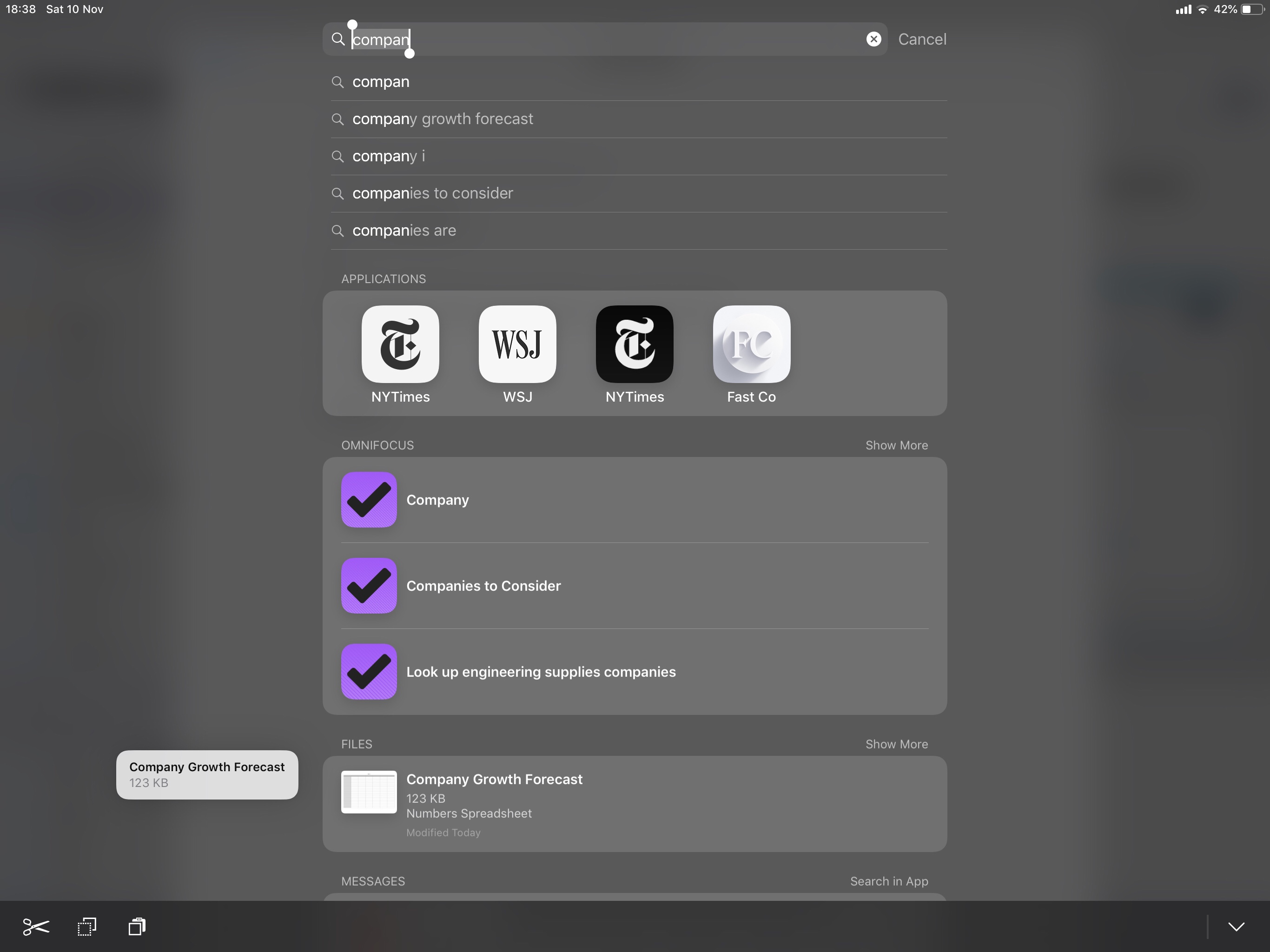
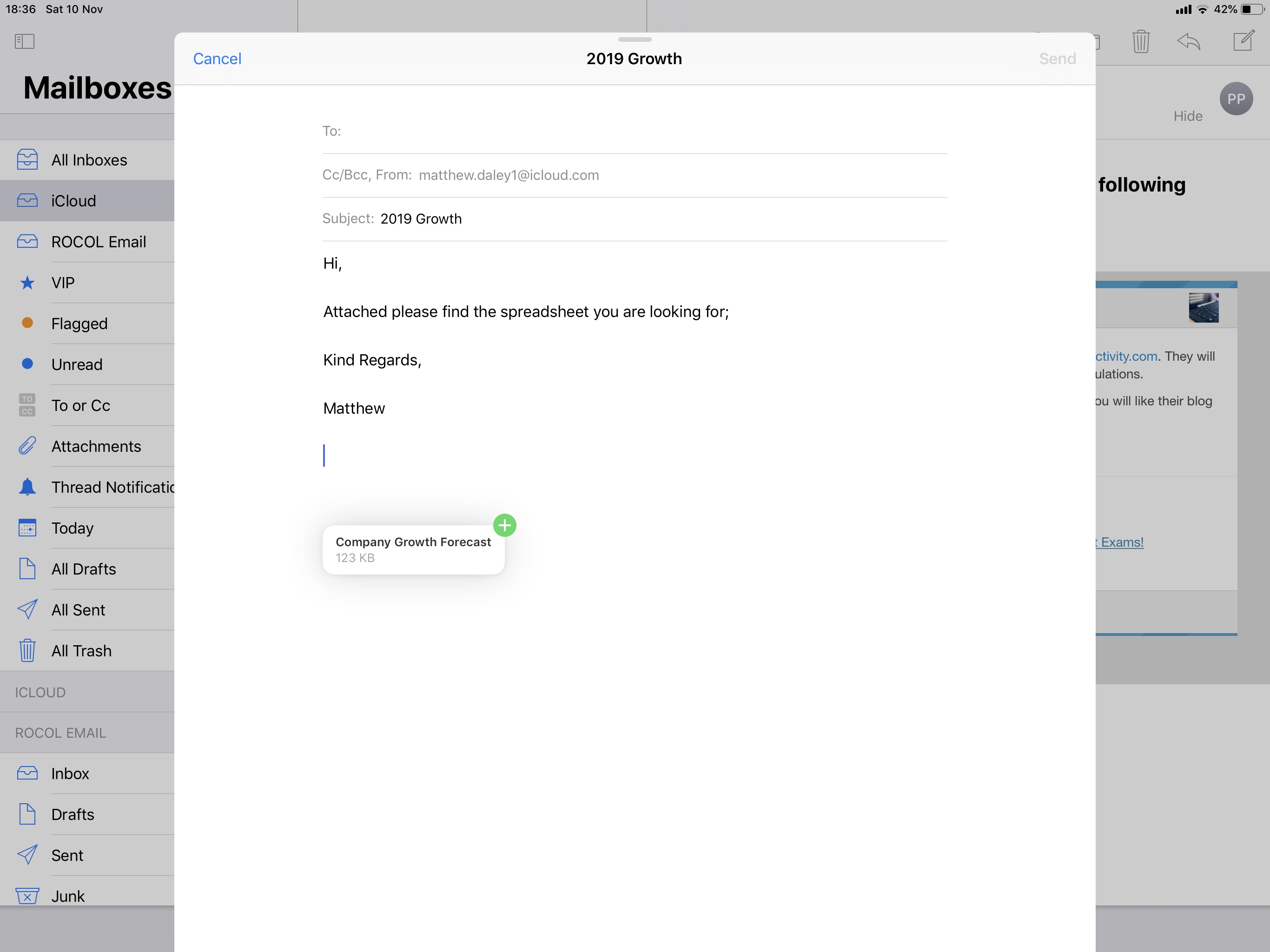
Another huge time saver example is in mail – while you are in mail, if you need to attach a file, instead of tapping a minimum of 4 taps to attach a file from your chosen storage service, you can simply press “Command + Space Bar”, type in the documents name, tap and drag the file from the spotlight menu, then whilst holding the file, use your other hand or finger to press “cancel” at the top right of the search bar to bring you back to your mail screen. Its instant and doesn’t require you tapping multiple times and searching through numerous imbedded folders. (See below)
Keep your current window layout
Did you know, that if you need an app which is not located in your dock and you need the app to run in “Slide Over” or “Split View”, you can grab it without loosing your current multi-window screen. You can simply press “Command + Space Bar”, type in the app name” and then drag the app out of “Spotlight Search” and into either “Split View” or “slide over”, to customize your current screen without having to start a new screen layout, its a huge time saver.
Calculations
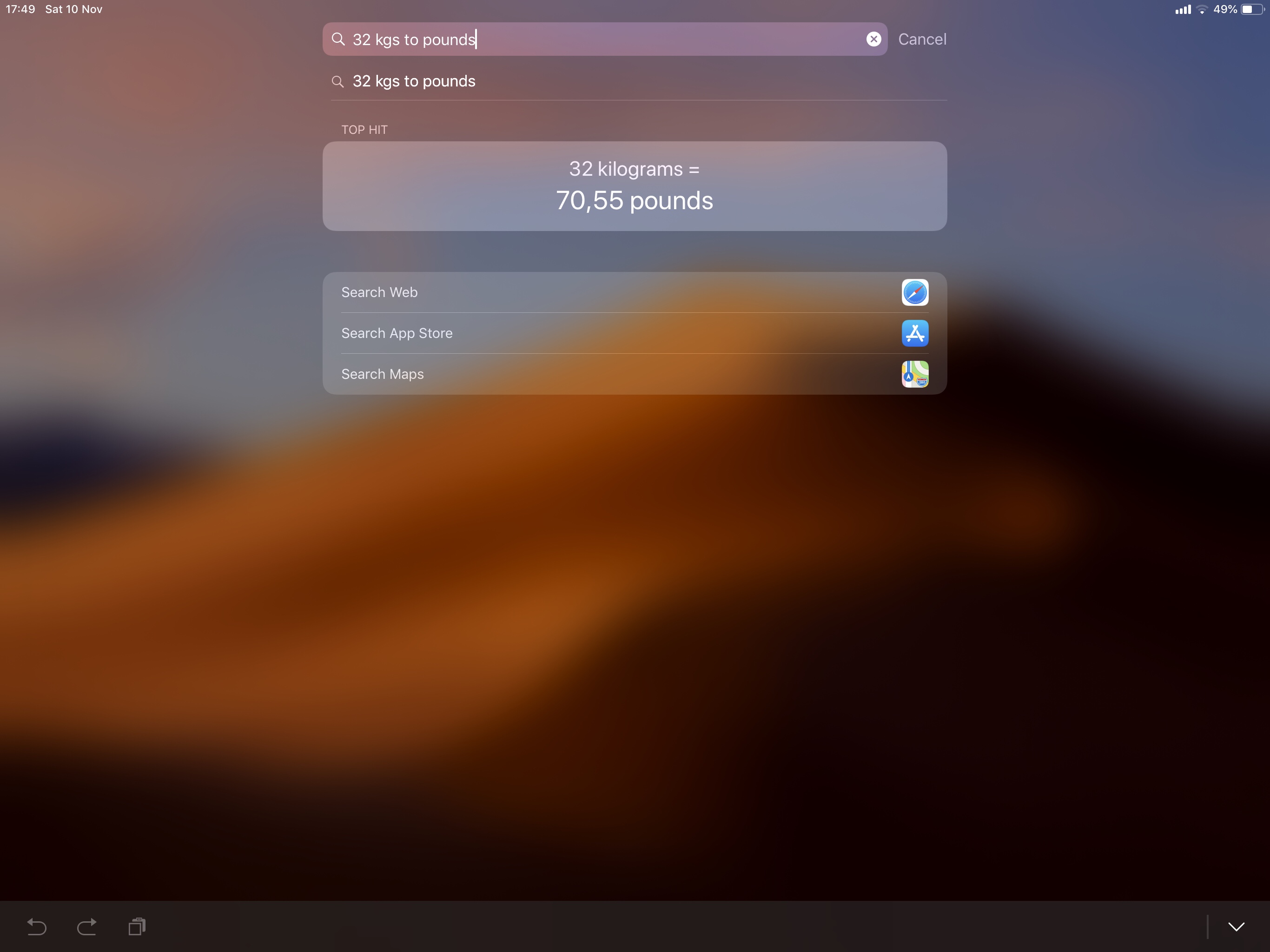
A useful feature iOS users may not know, is that Spotlight Search can also be used for quick calculations and conversions. Again, there’s no need to grab your phone or take your hands off your keyboard, just quickly activate Spotlight Search and run the calculation right there, its that easy.
Shortcuts
Make your shortcuts even faster – The Shortcuts app gives us super fast customizable automation and when triggered runs your predefined actions very quickly. But you can actually run them even faster with Spotlight Search. Simply type the name of the shortcut and tap the one your want to run. This is much faster and more convenient comparred to having to go to your iOS “home screen”, tap on your Shortcuts folder (if you are that organized) or the Shortcuts App and scroll through to find the one you want. This reduces the amount of taps you and time required to trigger a shortcut dramatically.
In Conclusion
There are many other helpful uses of “Spotlight Search” which you will discover yourself, but if you are looking at ways to boost your productivity on iOS, use “Spotlight Search” its a game changer when incorporated into your workflow.




Leave a comment