
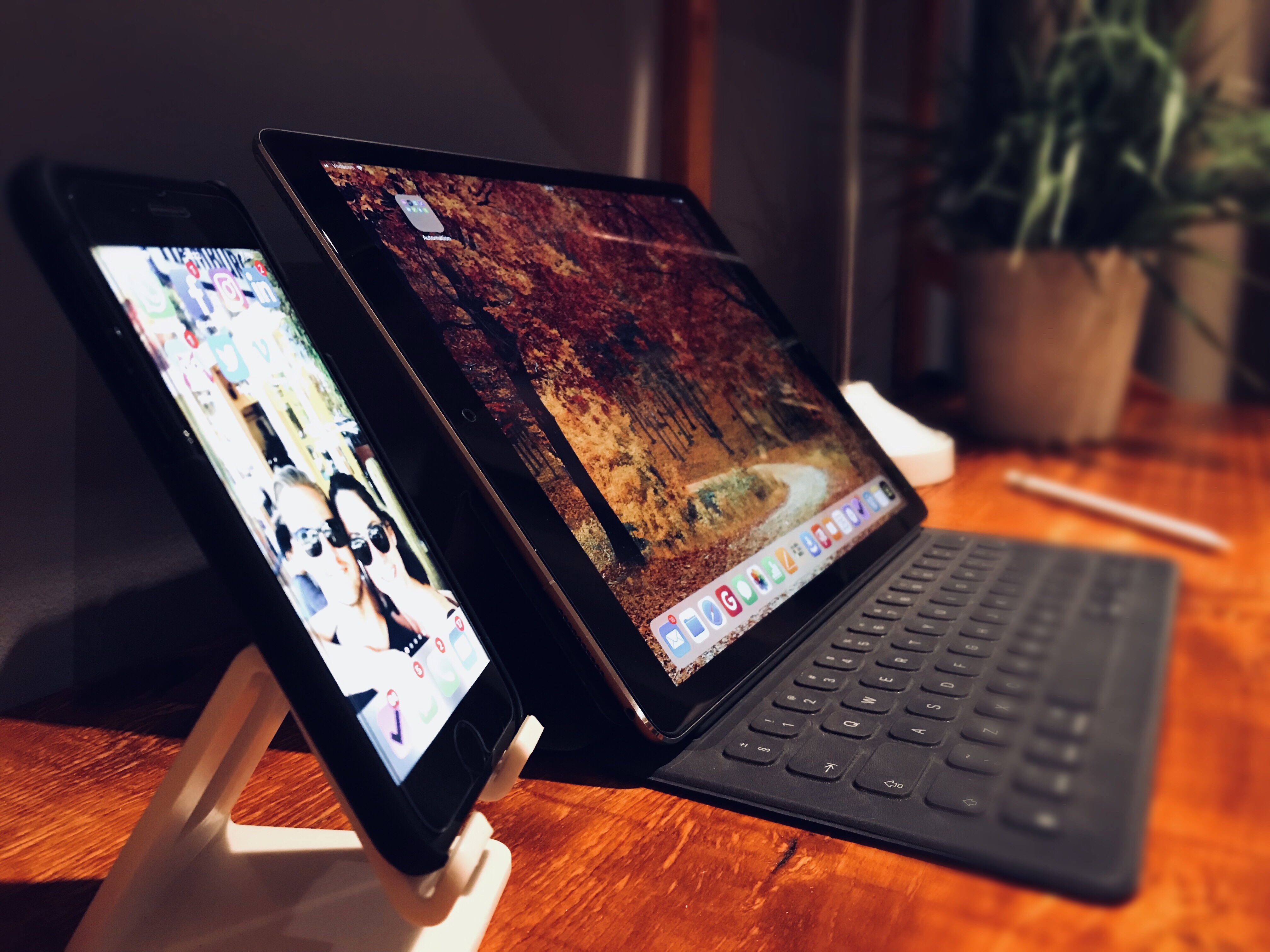
When you are trying to get work done, no one says “Gosh I wish I had less screen space”.
If you have an iPad the chances are that you have an iPhone and that means you are ready for this set up right now! When you put the two next to each other, you will essentially be able to run four different windows at the same time. That’s two in split view, one in slide over and one more on your iPhone.
The first thing you will need is an iPhone stand, dont try and make one using a business card holder or some or other contraption. Just buy one online and make sure the iPhone does not stand at 90º, other wise you will not be looking directly onto the iPhone which will cause significant glare and reflection.
Below are some powerful workflows for a two screen set up using iPad & iPhone.
1.) Enable Hey Siri on Just your iPhone 📱
Without having to stop typing, editing or doing whatever you are busy with on your iPad, you can simply tell Siri to get busy doing something else entirely on your iPhone. For example;
Type a mail, make a phone call, send a message, tell me whats on my calendar or add something to a task manager etc. All while you are busy on your iPad.
2.) Continuity 🔗
With your iPad and iPhone next to each other Continuity works like a treat! You can do things like view a spreadsheet on your iPhone, then raise the dock and you will notice the app icon you are using on your iphone, pop up on the right side of your iPad dock, you can now just drag that app up off your dock into splitview or tap on it to view it full screen. Now you’re iPad will be You will be displaying the same screen you saw on your iPhone, then you can just use your iPhone for something else. Its nearly the same as being able to drag an app across onto another screen. The benefit here is you don’t have to pay for a screen and it doesn’t take up nearly as much space as a screen or monitor.
3.) Take Copy & Paste to a whole new level 📲
For those who don’t know yet, you can copy from your iPhone and paste on your iPad and this means you can save a ton of time without having to change your primary window set up, or having to save a draft or whatever you were busy with. Instead you can use your iPhone to pull up the info you need, be it a reference, a URL, a phone number, email, image, PDF, or just about any file, then you can just copy it by long pressing or using the extensions menu and just paste it on your iPad conveniently.
4.) Having another iOS app running ✅
It’s so useful to simply run another iOS App on your iPhone, without needing to use any space on your iPad. For example referencing your task manager, notes, calendar, Dropbox or even a FaceTime call/ meeting, makes life so much easier and convenient having a full undistracting display on your iPad.
5.) A more convenient Notification Center. 📰
I dont like having notifications on my iPad at all. Only a few select apps like messenger and calendar get that privilege because they are directly related to work and are critical for work functions. By simply being able to reference your Notification Center on you iPhone next to your iPad is very handy and helps keep pesky distractions away from your primary work screen, while still giving you all the same functionality but on a separate display. It saves a lot of time in the day, to just swipe down from your Notification Center on your iPhone to quickly catch up on news, whats App messages, and other nifty widgets, then get back to work.



Leave a comment